Microsoft Edge - Profile Sign-In
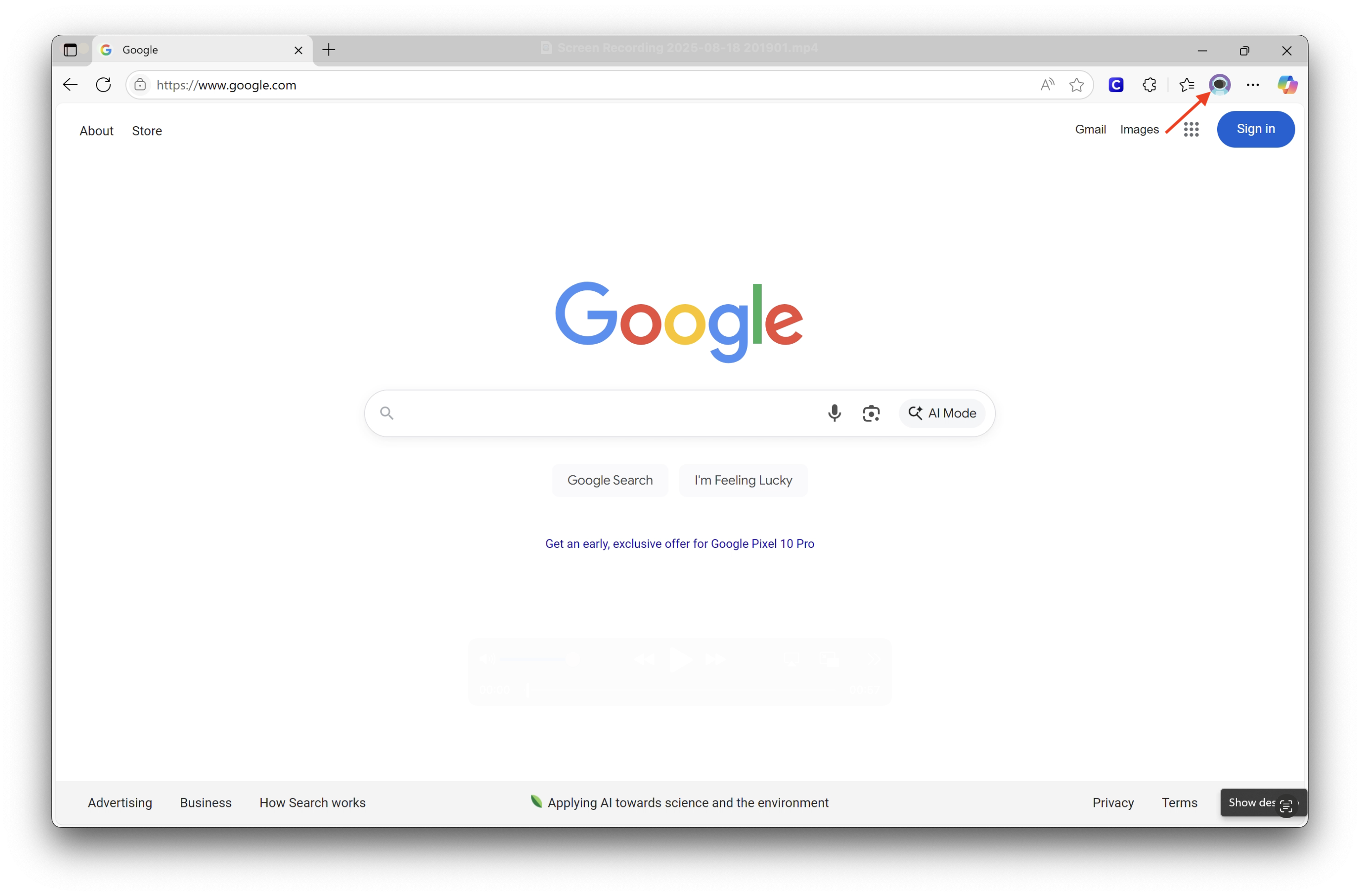
- Open Microsoft Edge. Select the profile icon on the upper-right corner.
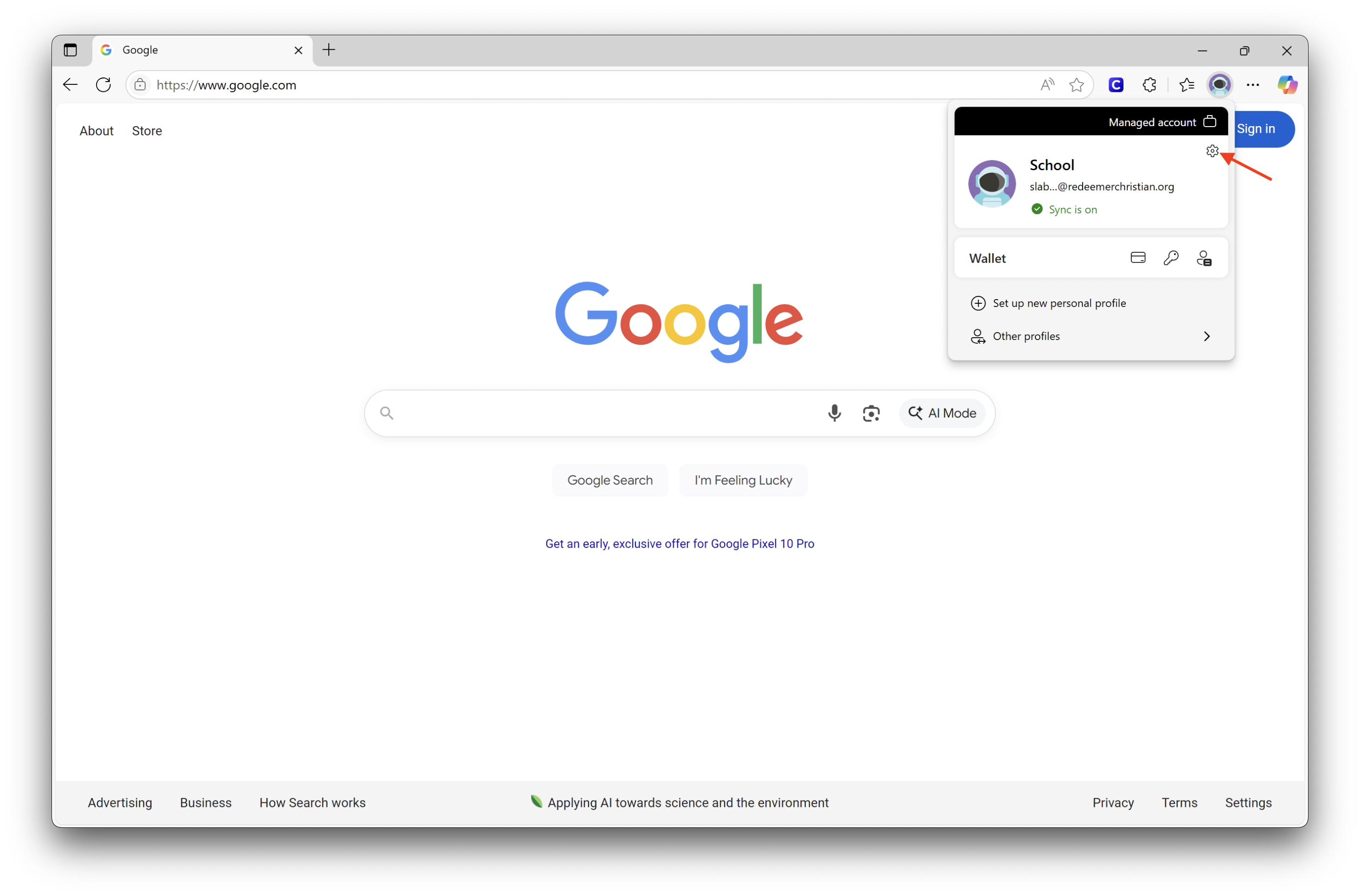
- When the profile fly-out window pops down, click the gear icon to enter the Settings page.
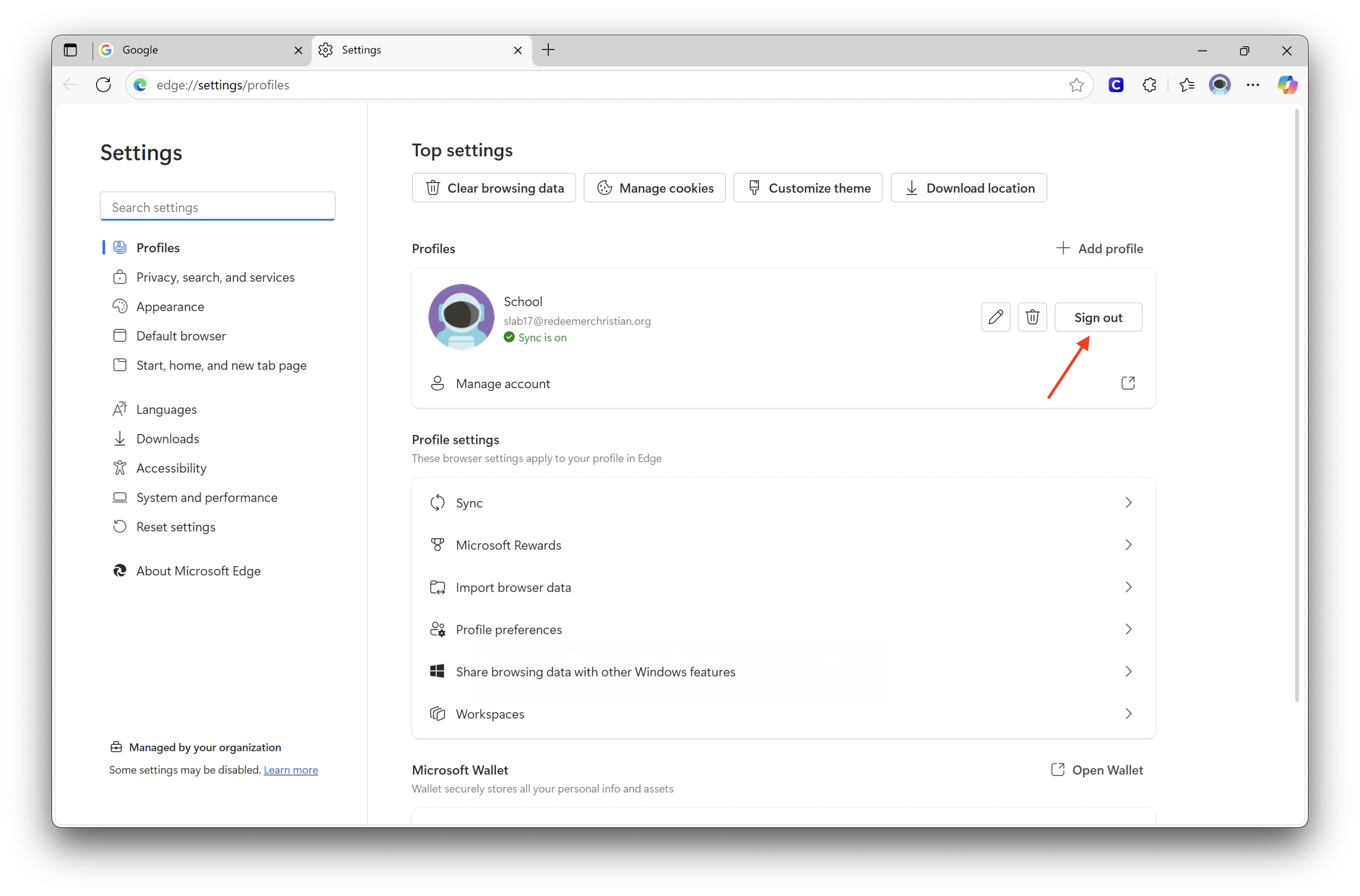
- Select the "Sign out" button.
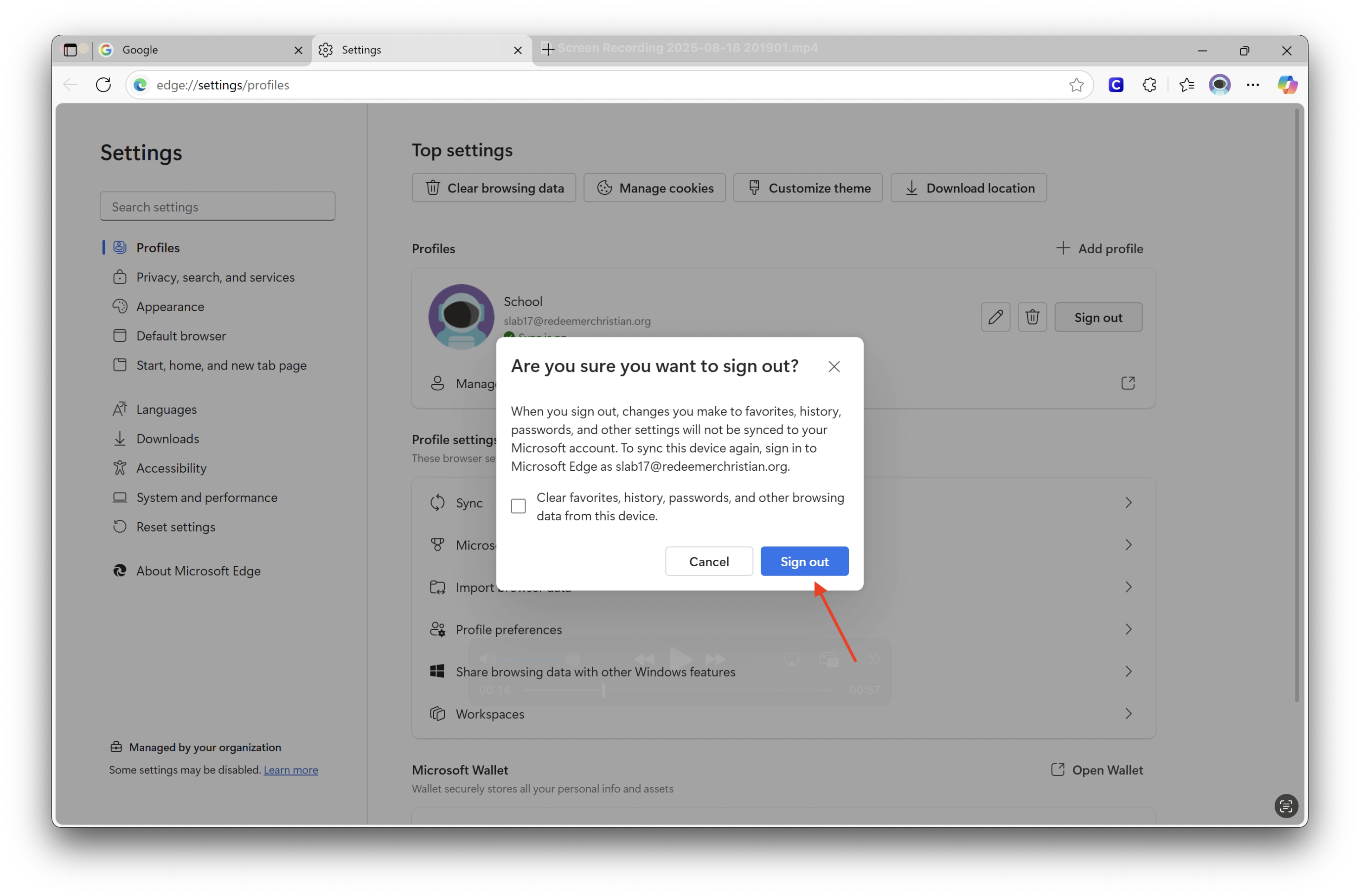
- Click "Sign out" from the pop-up window.
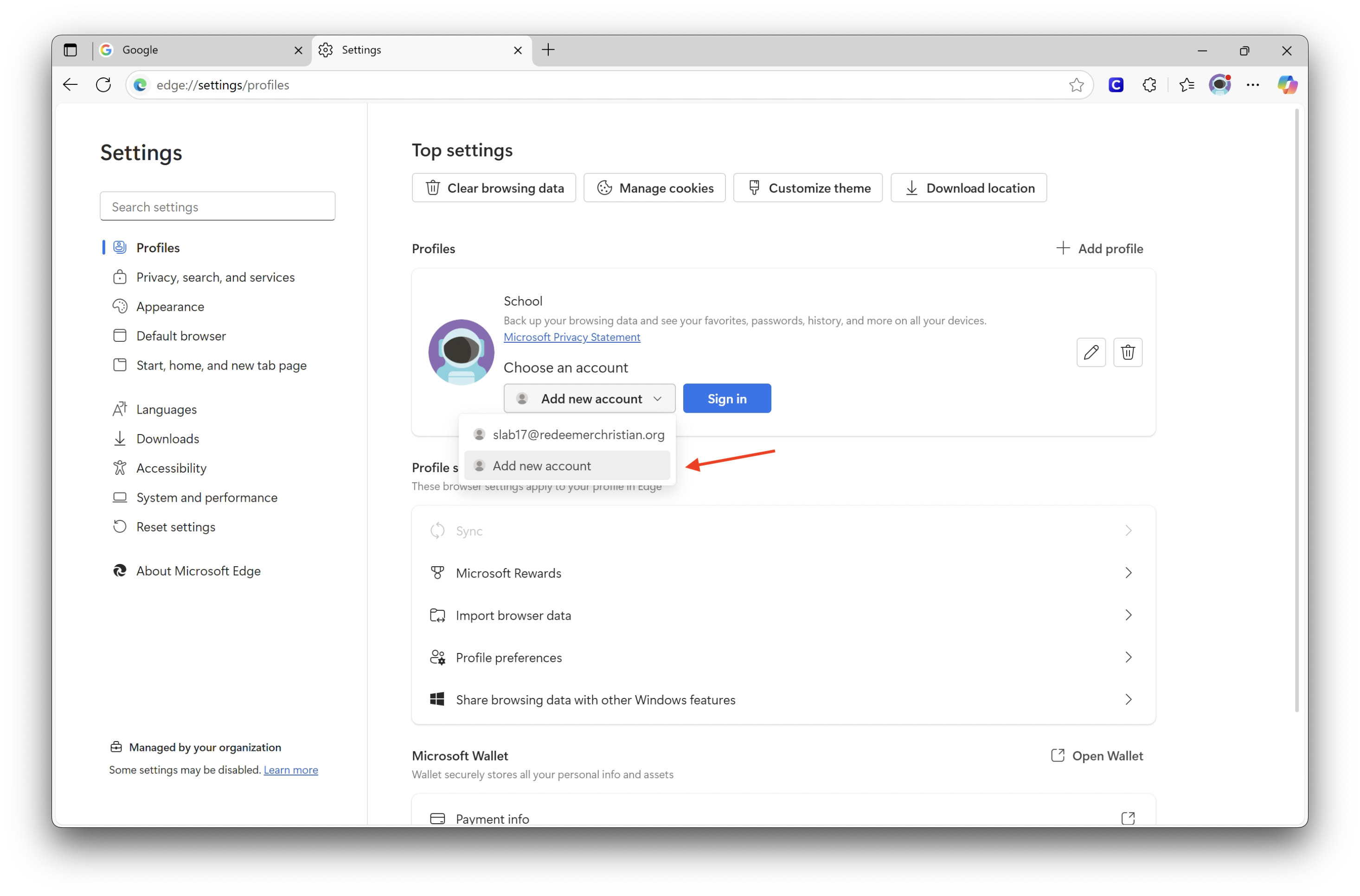
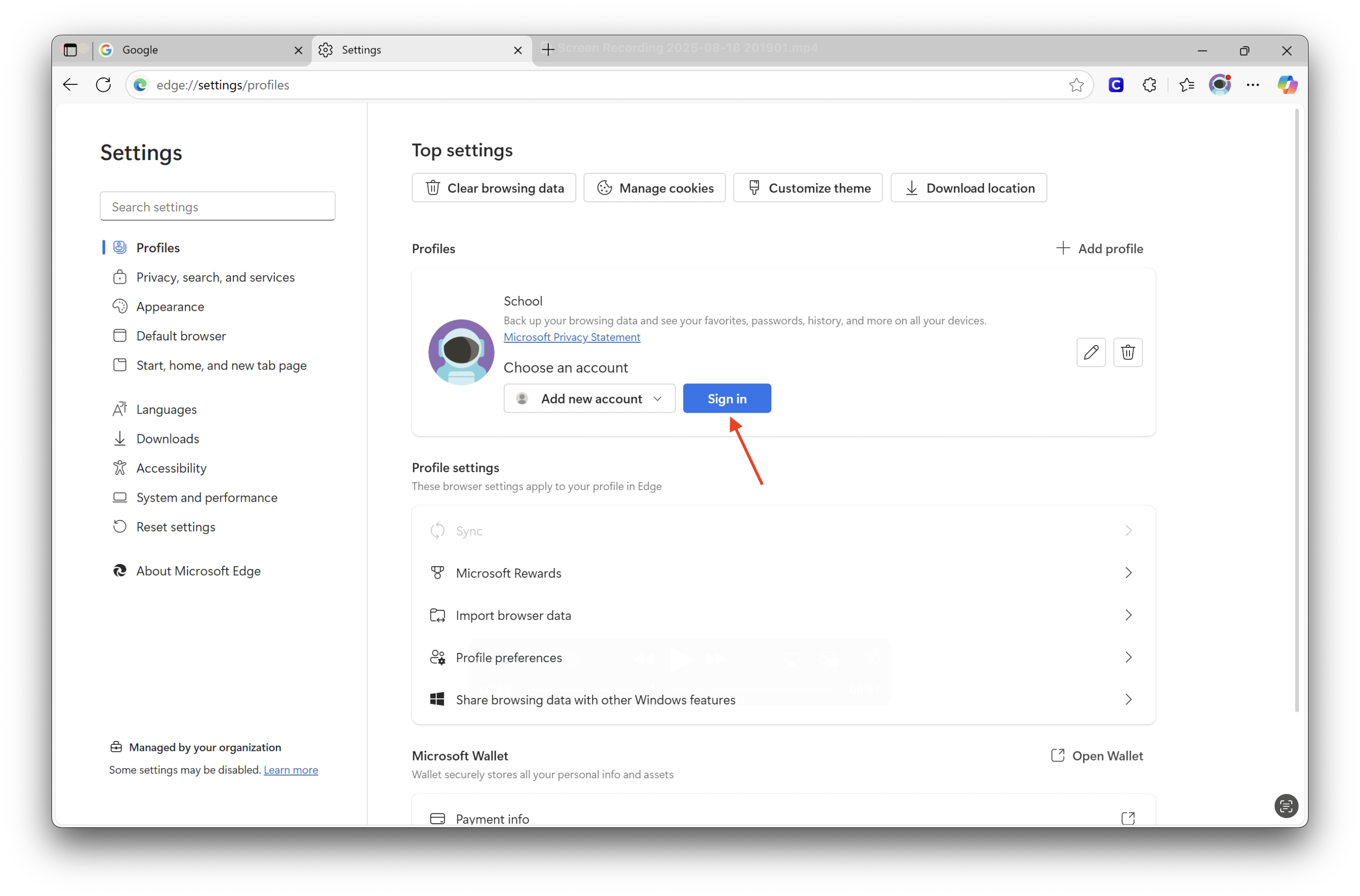
- Now go to the drop-down area to the left of the Sign in button. Ensure that Add new account is selected. Then select Sign in.
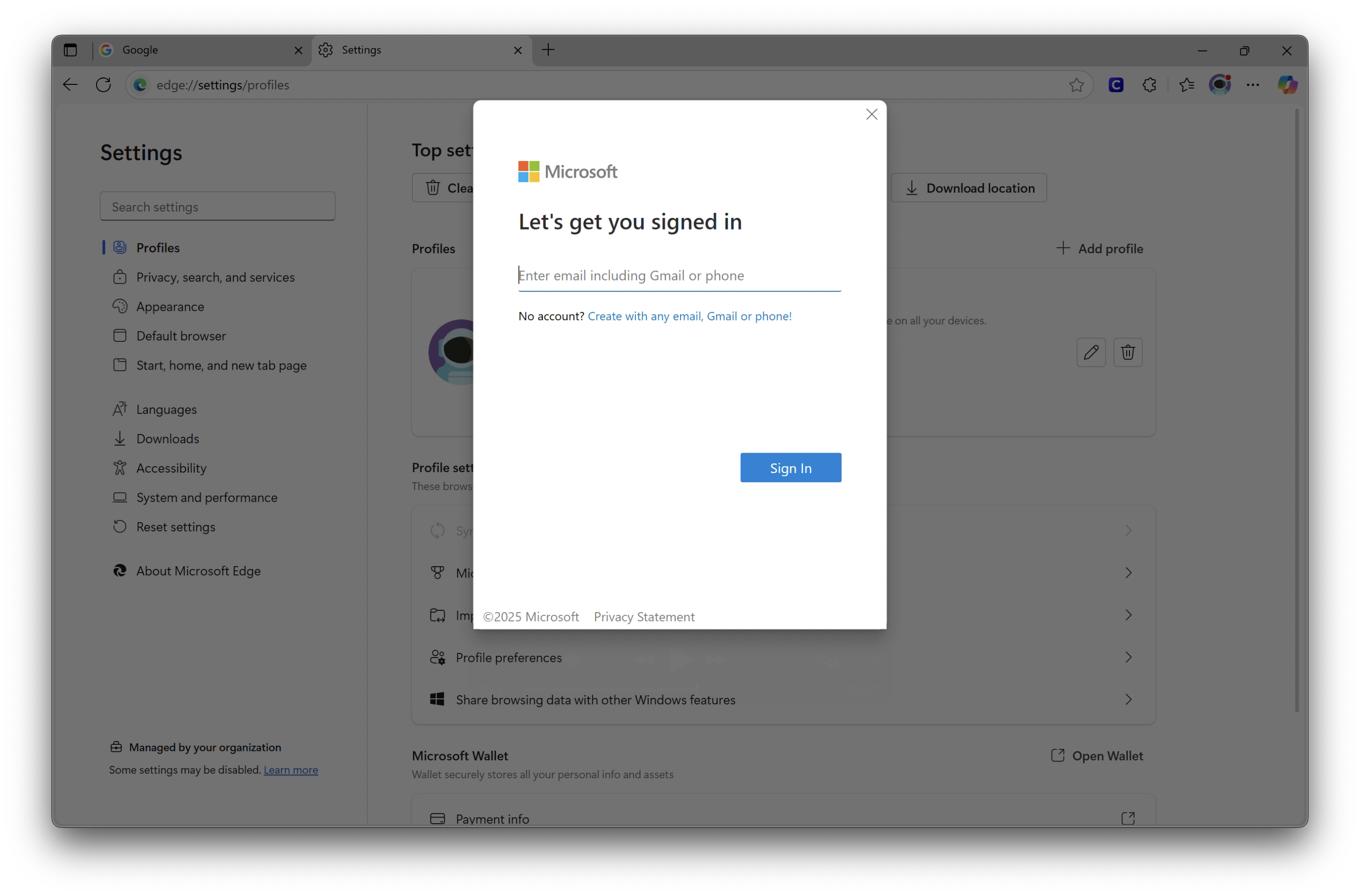
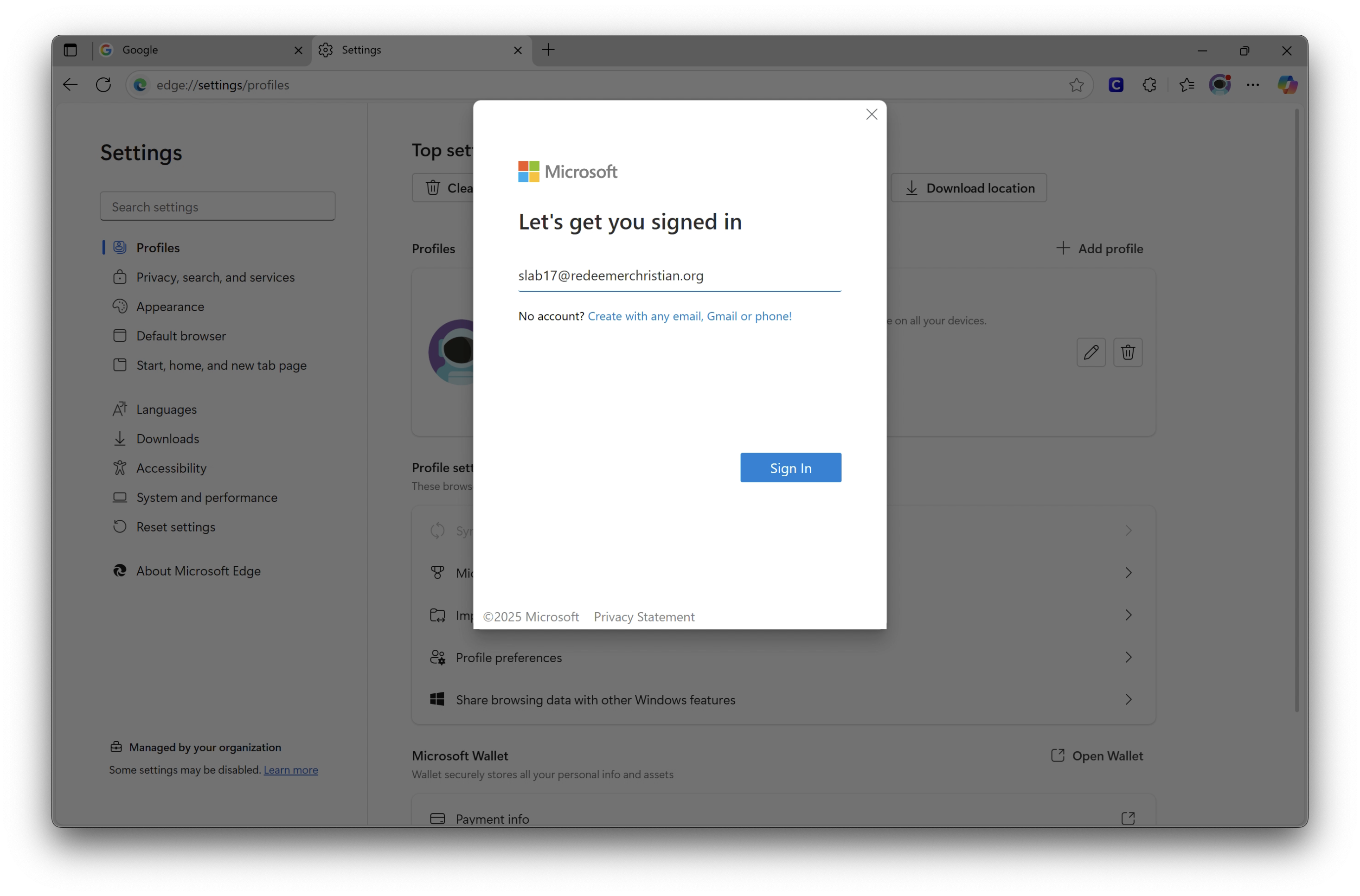
- Sign in with your school email. Ensure it is a @redeemerchristian.org domain email, not @rentonchristian.org email. After entering your email, click Sign in.
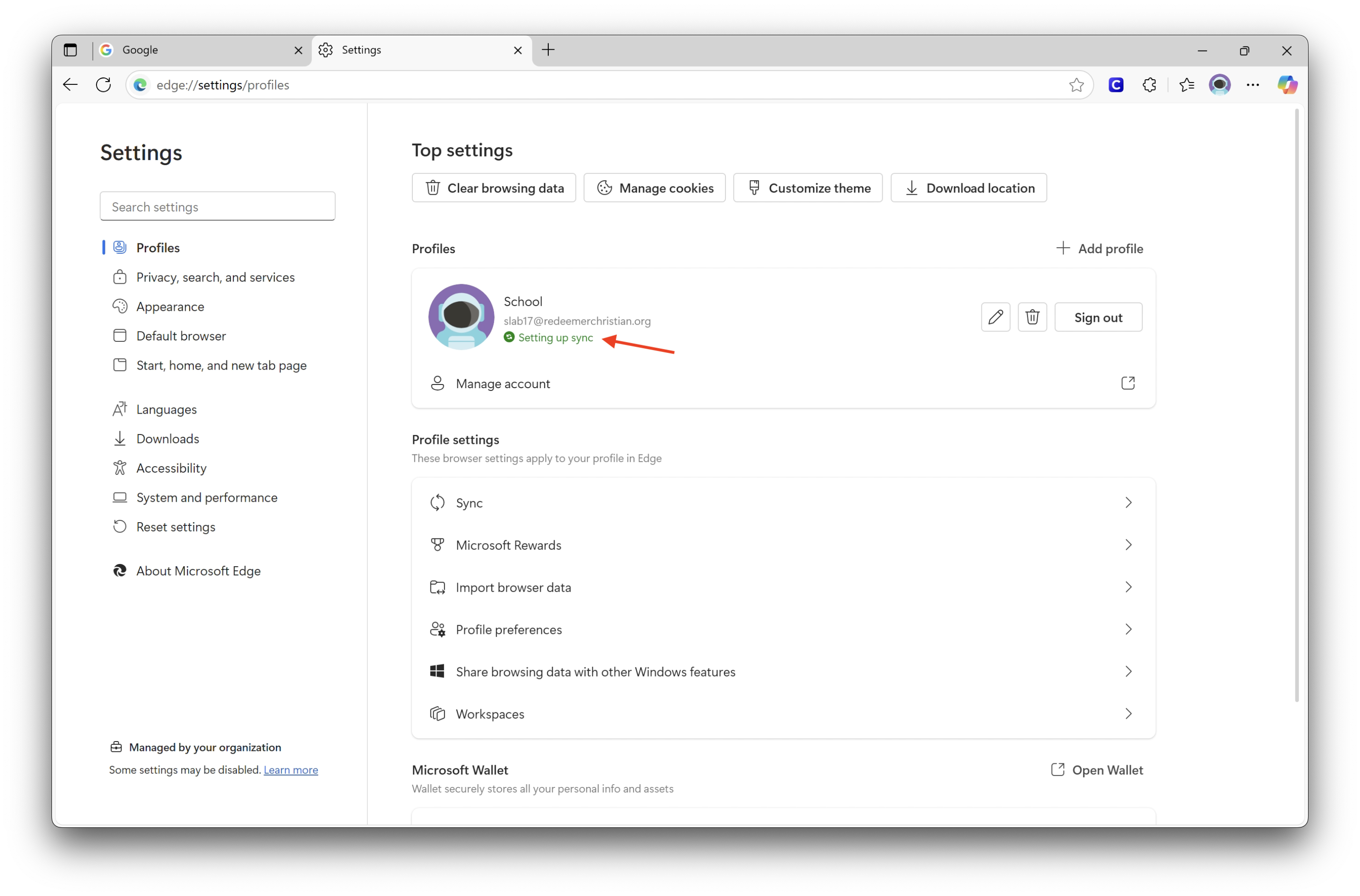
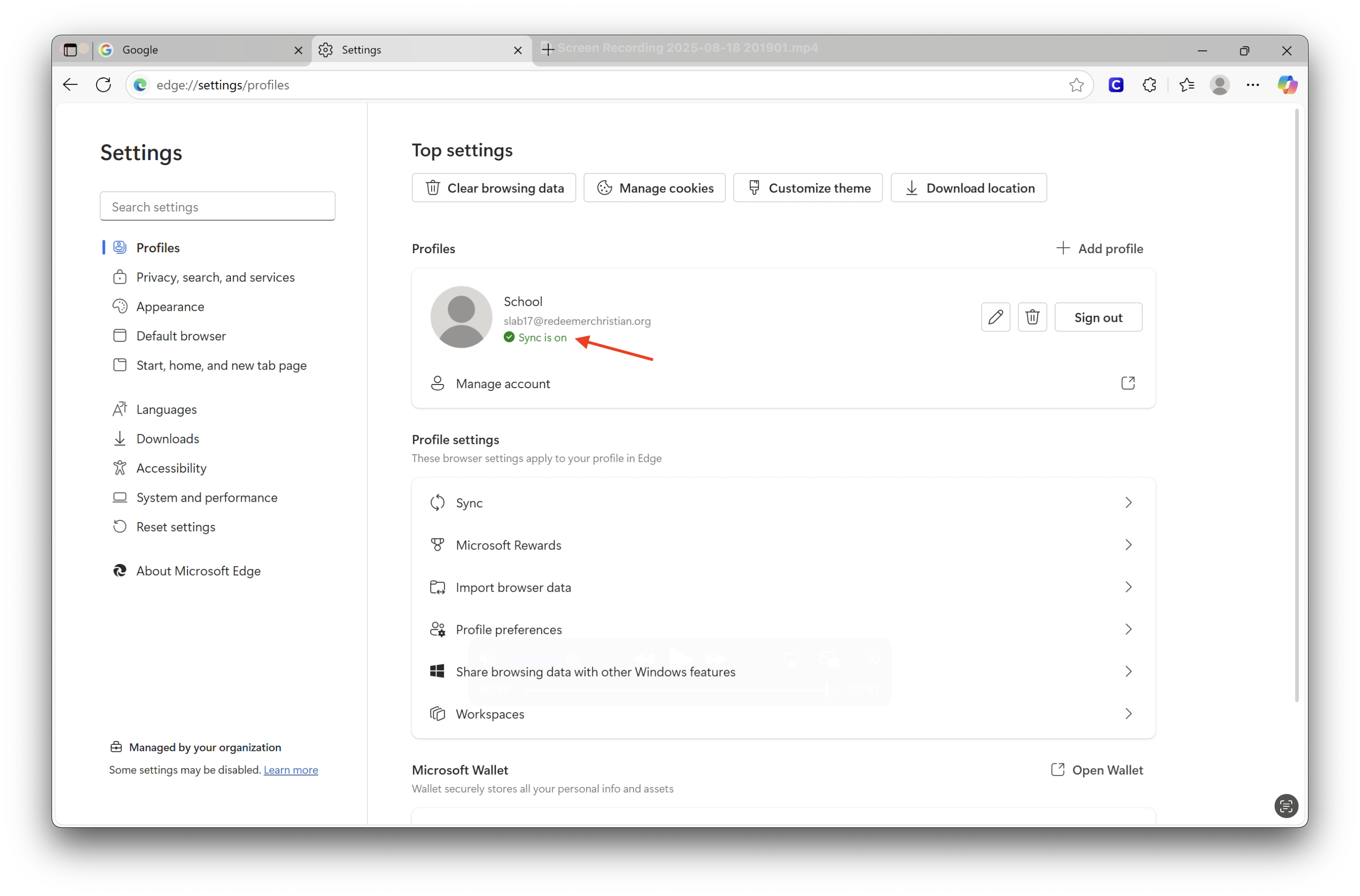
- Allow it a few seconds to completely sync up to your account.
Did this answer your question?
Thanks for the feedback
There was a problem submitting your feedback. Please try again later.
No results found

