
Student Device Setup | Launching Pad
Prerequisites:
PC/Mac: Please setup your device per manufacturer's instructions. After completing setup, download the Google Chrome browser. You can download at https://www.google.com/chrome
Chromebook: You'll need to Powerwash your student Chromebook in order to enroll it in the RCS device ecosystem. Please reach out to it@redeemerchristian.org to assist in enrolling your Chromebook.
- After downloading Chrome, please select Sign In. Login with an RCS-issued student account.
Naming convention is: first.last30@redeemerchristian.org, where first is your student first name, last is student last name, and the last two digits of your graduation year. In this example it is 2030.
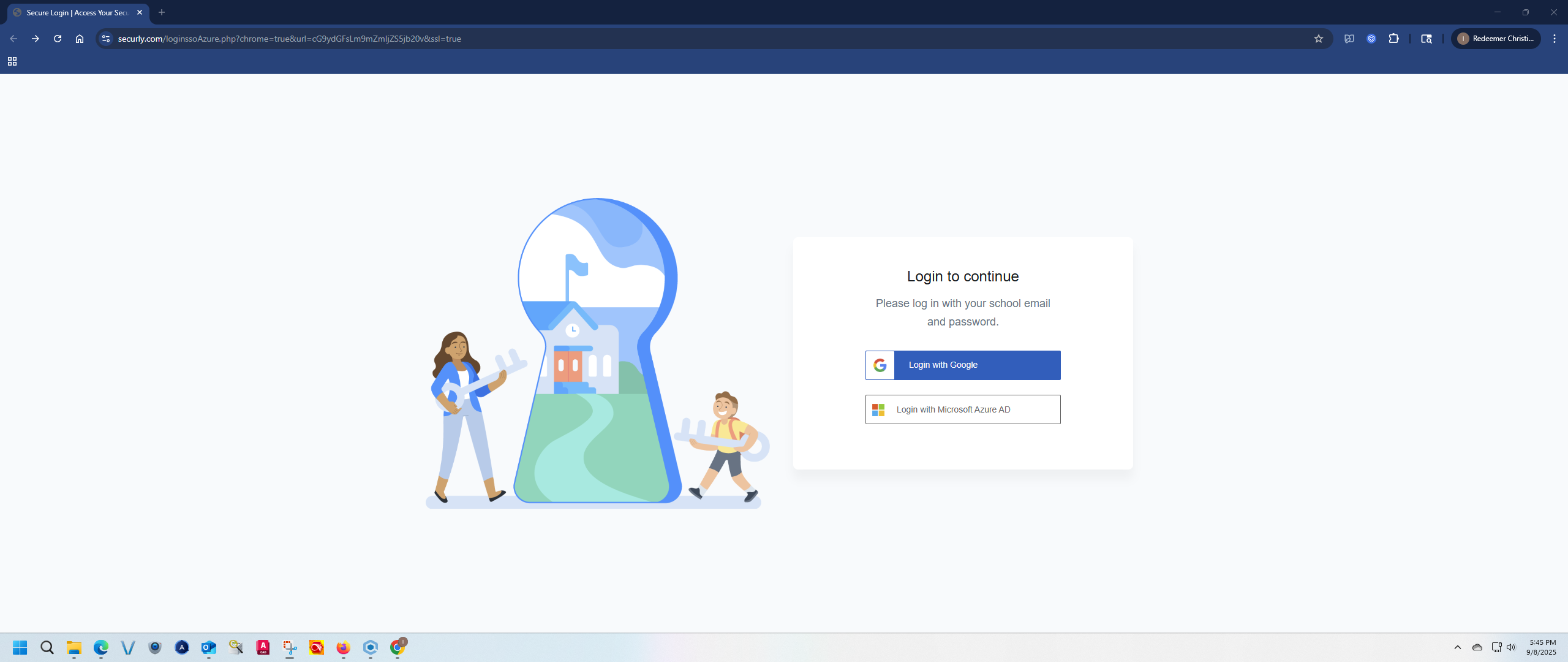
After signing in and accepting the terms, please close your Chrome browser. Then open it up again and click on Login with Google. Do not attempt to sign-in with Microsoft yet.
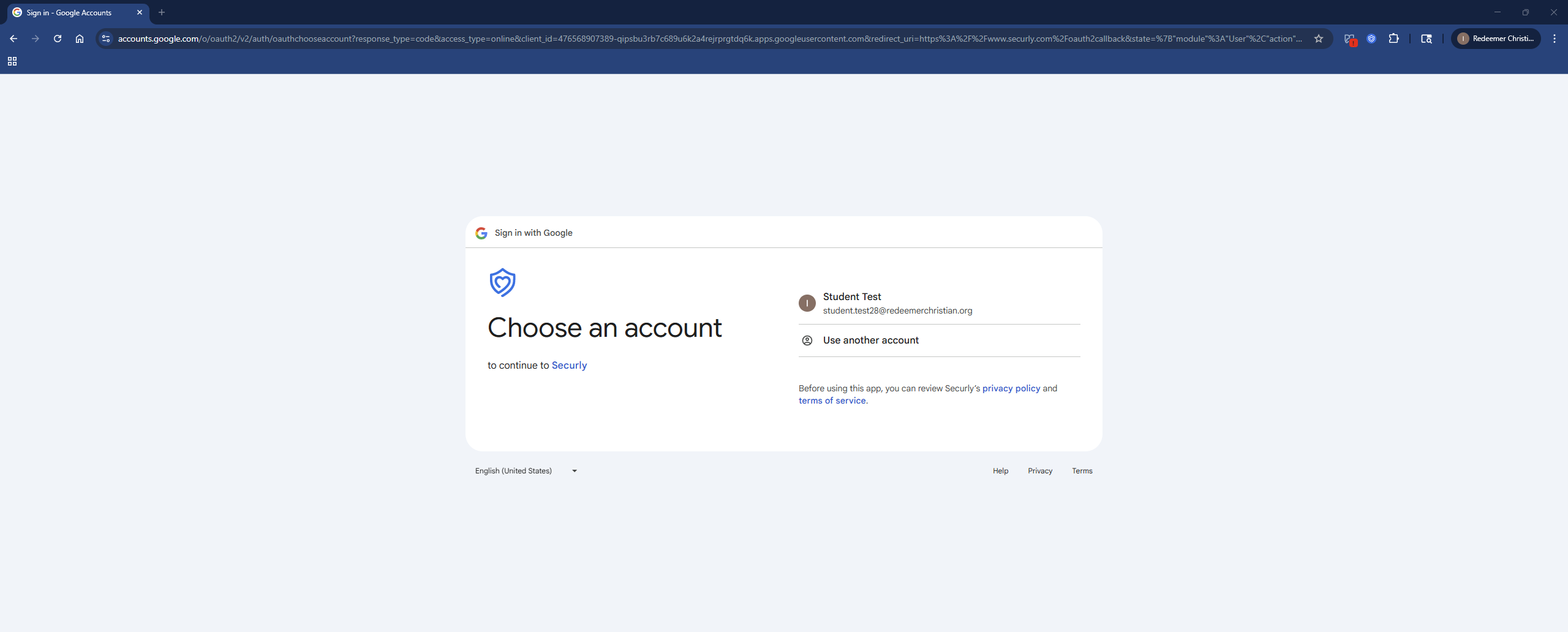
- Click on the Google student account you signed in with earlier.
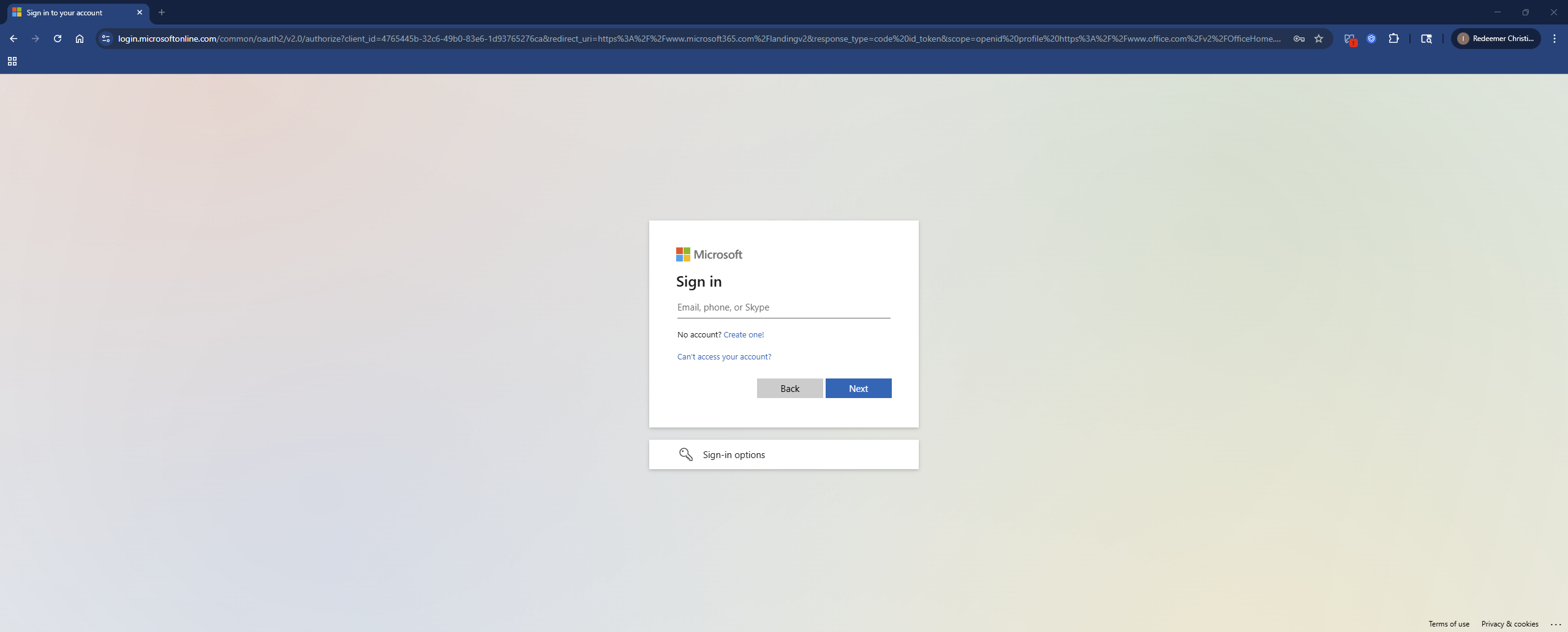
- Now you are able to sign-in to the student Microsoft account. Password is Student26, case-sensitive. It will ask to change it after a successful login.
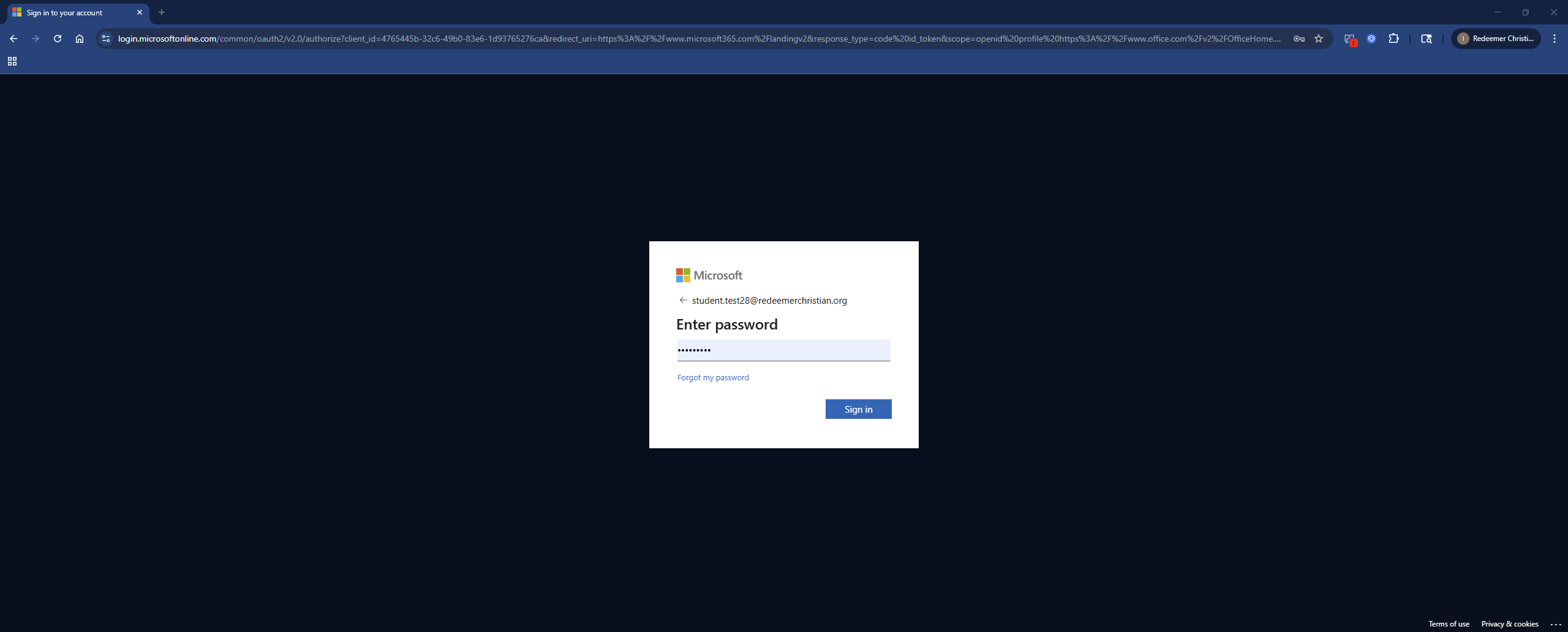
- Password is Student26, case-sensitive.
- Click Next.
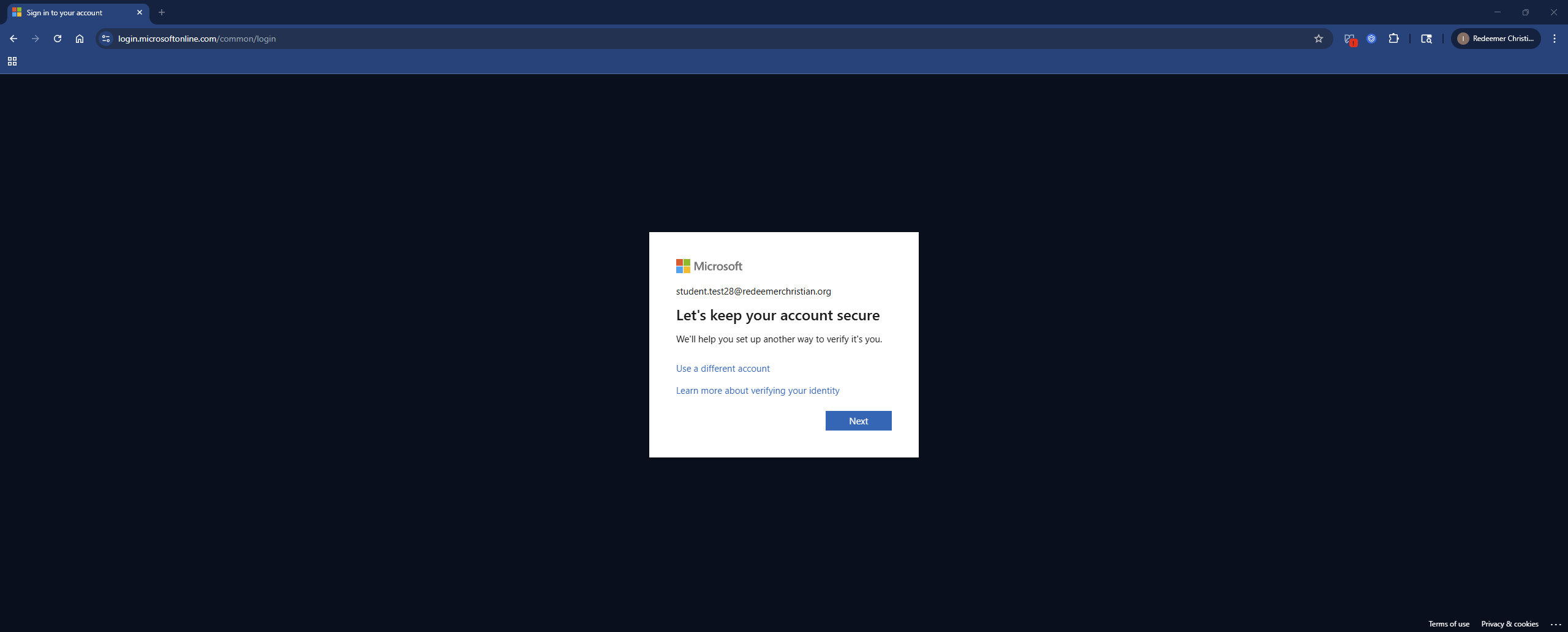
- Select Skip Setup on the bottom right corner.
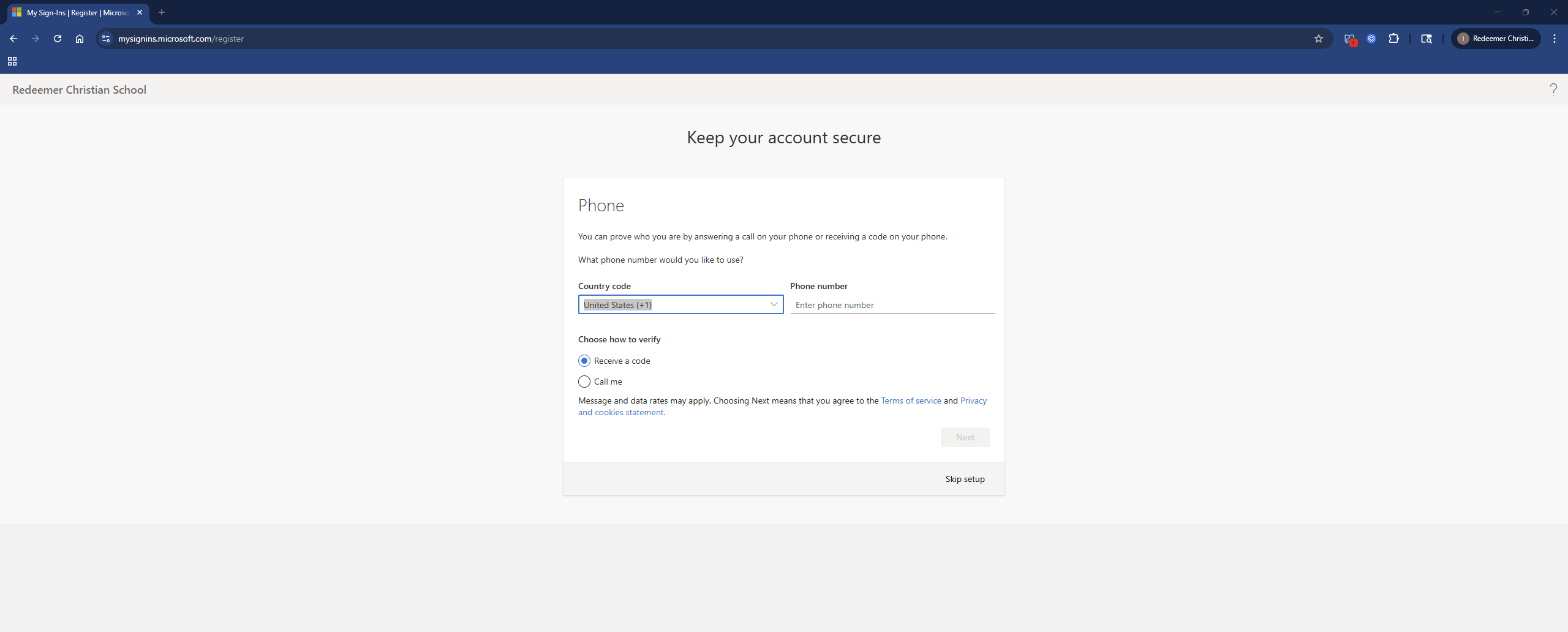
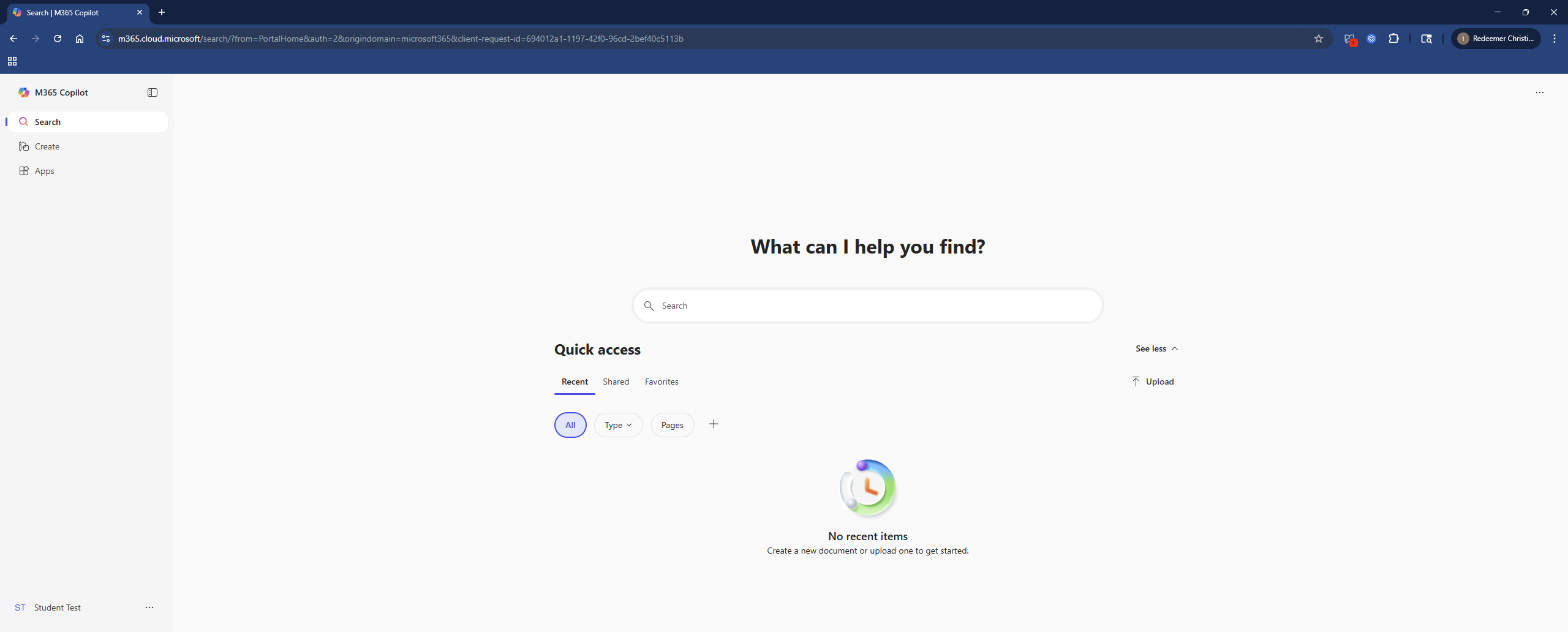
- Once you see your Office dashboard, you have successfully signed in.
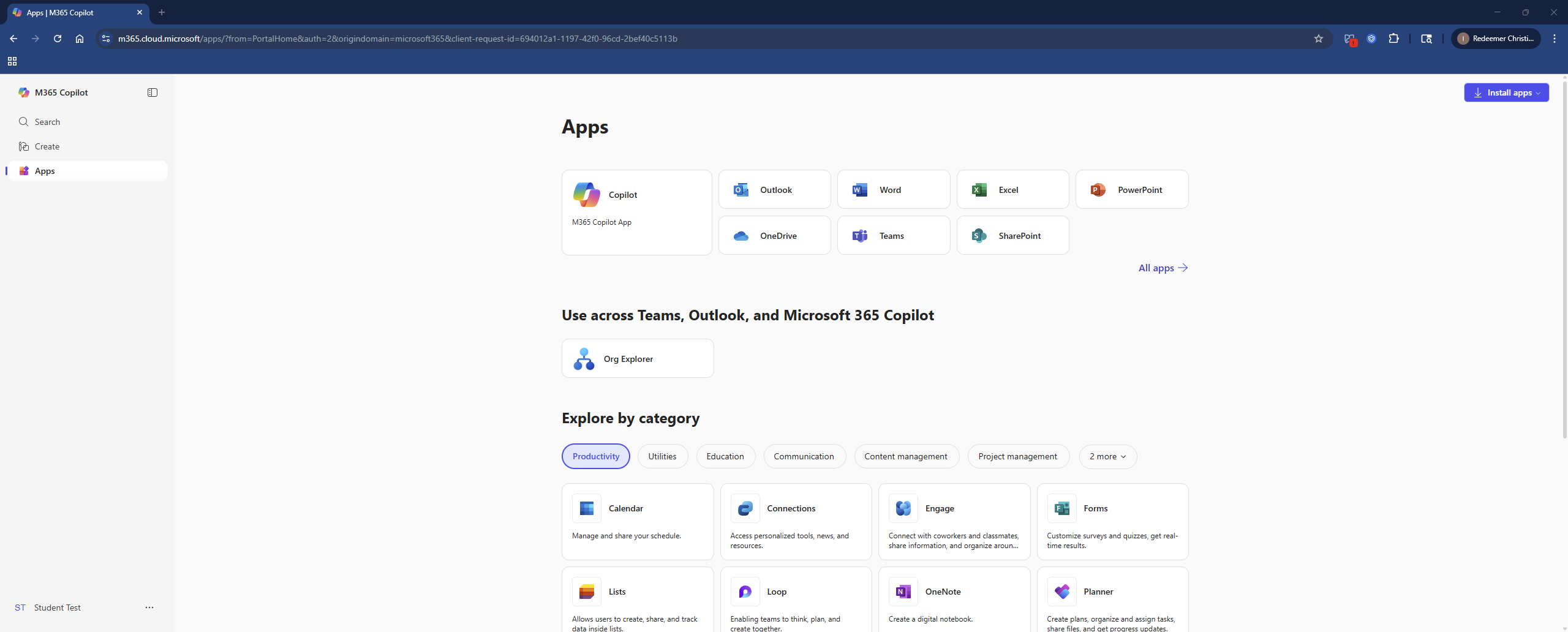
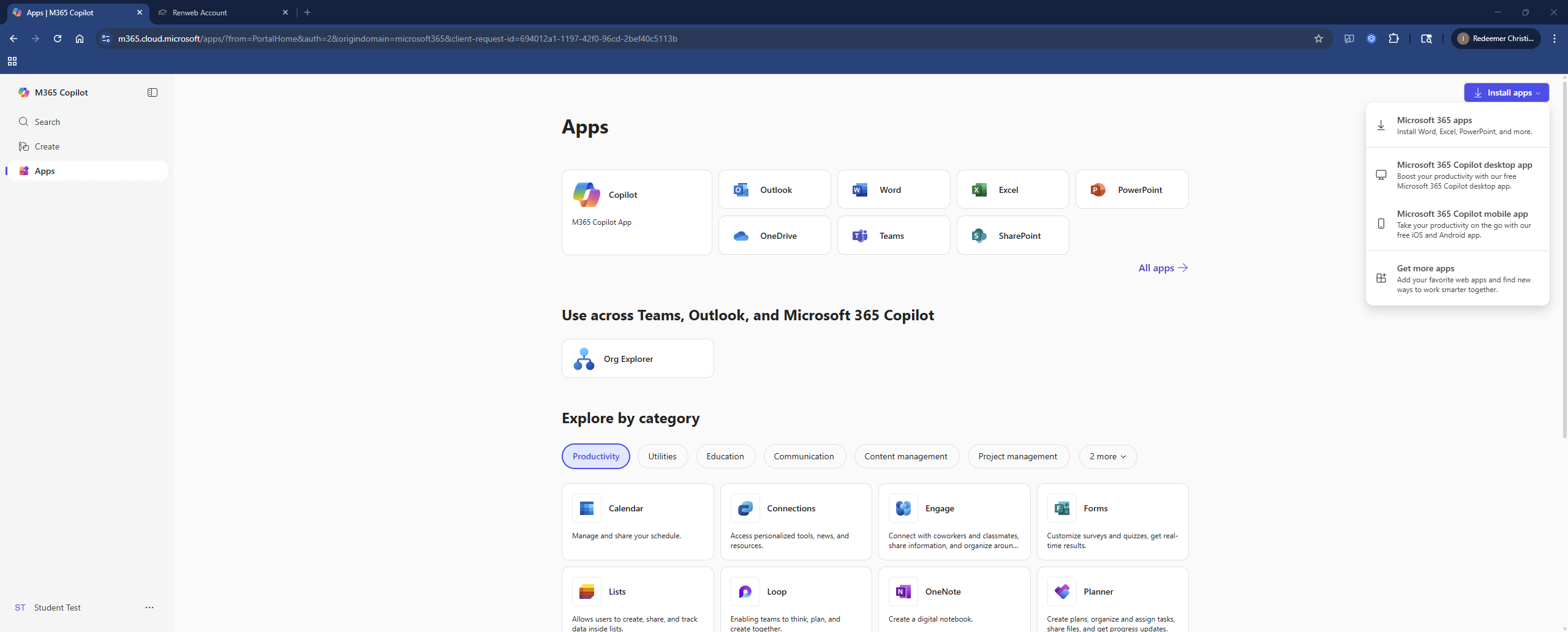
- Your student license allows you web access to Office365 apps via a browser. Click on Apps in the upper-left menu. If your student license allows, you can also install Office apps by clicking on the upper-right corner and selecting Install apps, then Microsoft 365 Apps.
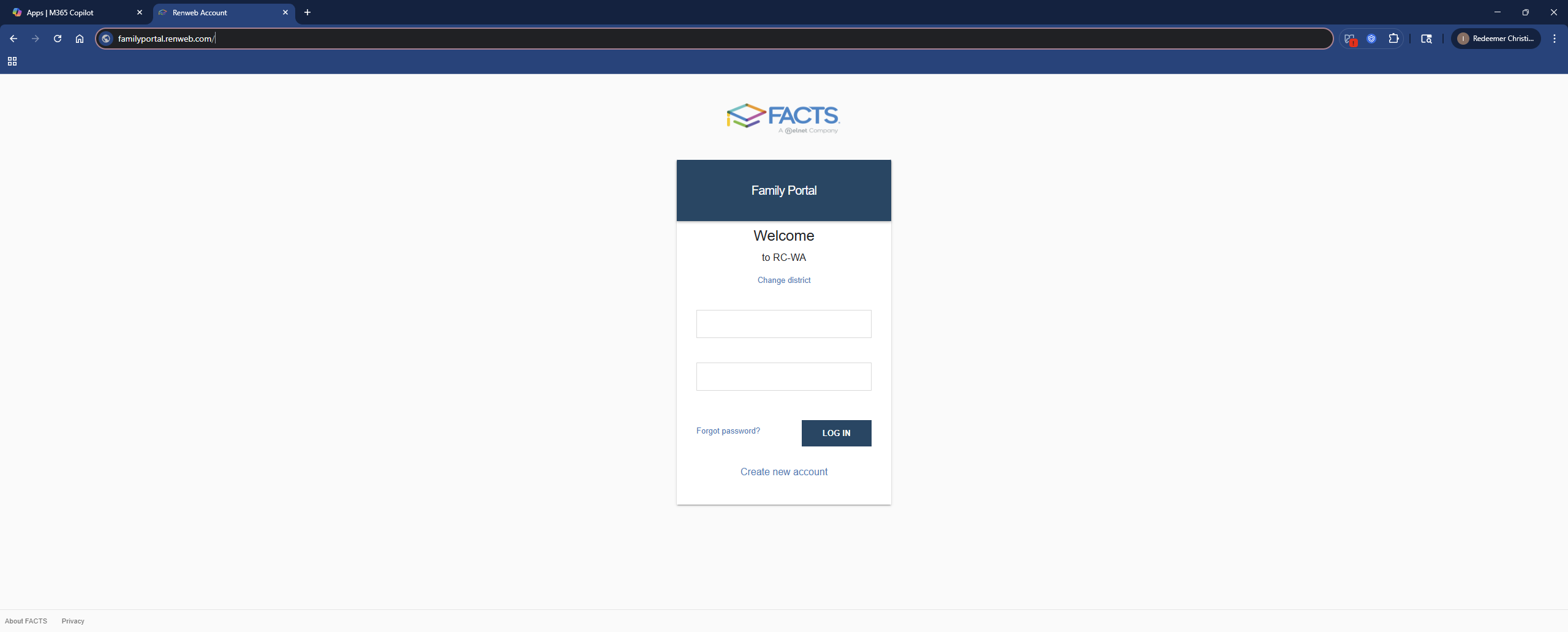
- Login to FACTS by going to https://familyportal.renweb.com/.
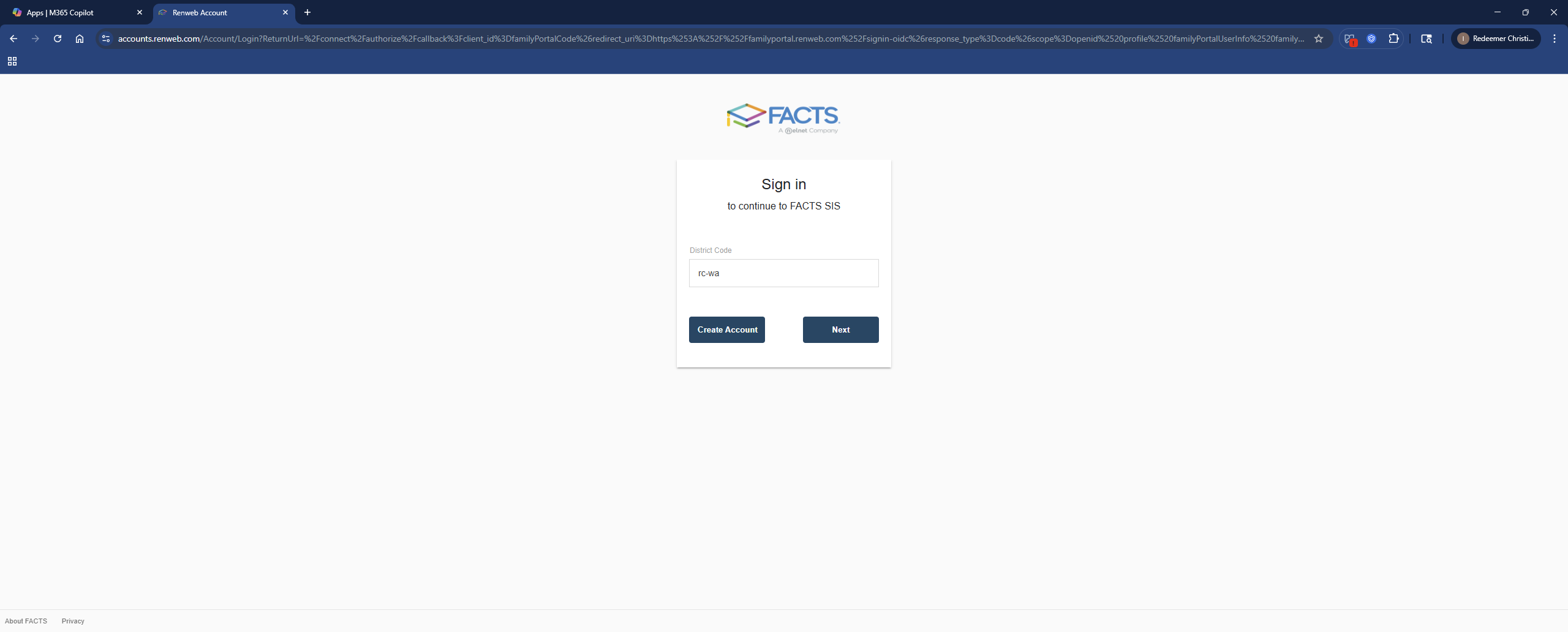
Redeemer Christian School - District Code: RC-WA.
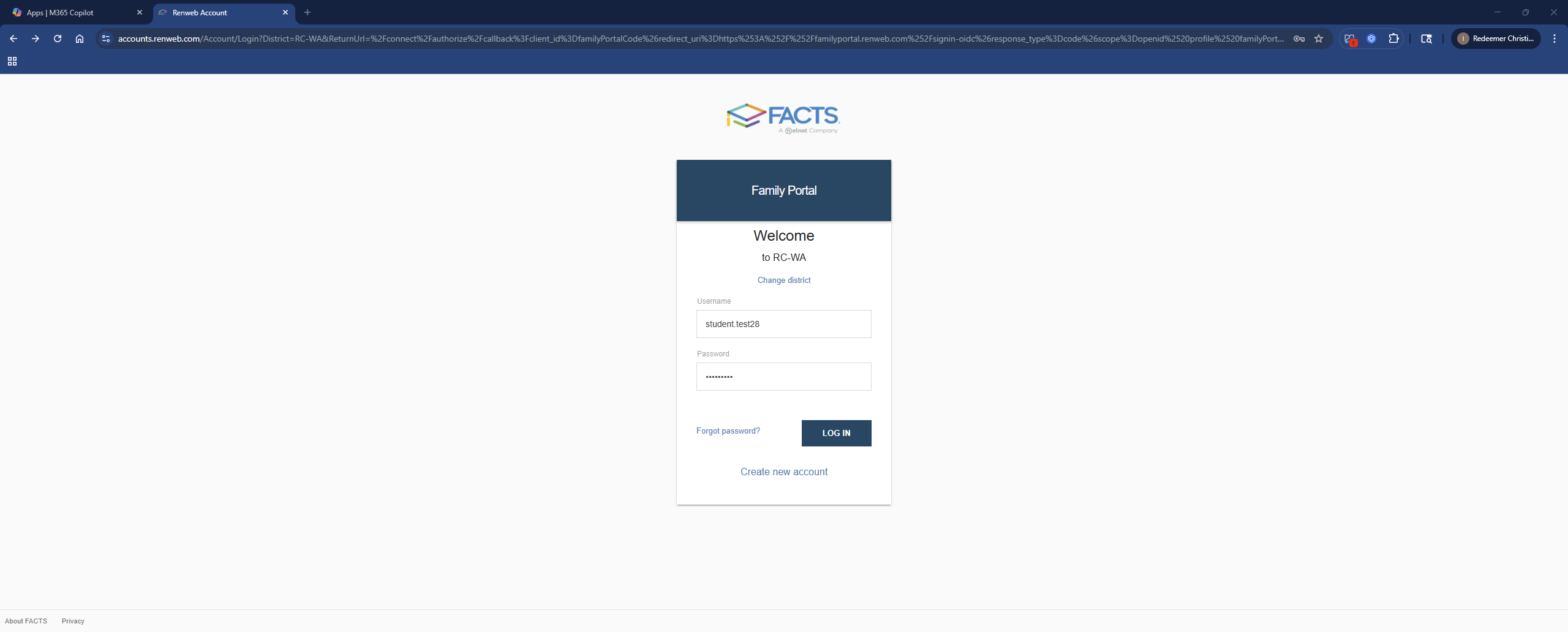
Your student username is the short alias of your student email: first.last30
Please note: do not include the @redeemerchristian.org for your username in FACTS.
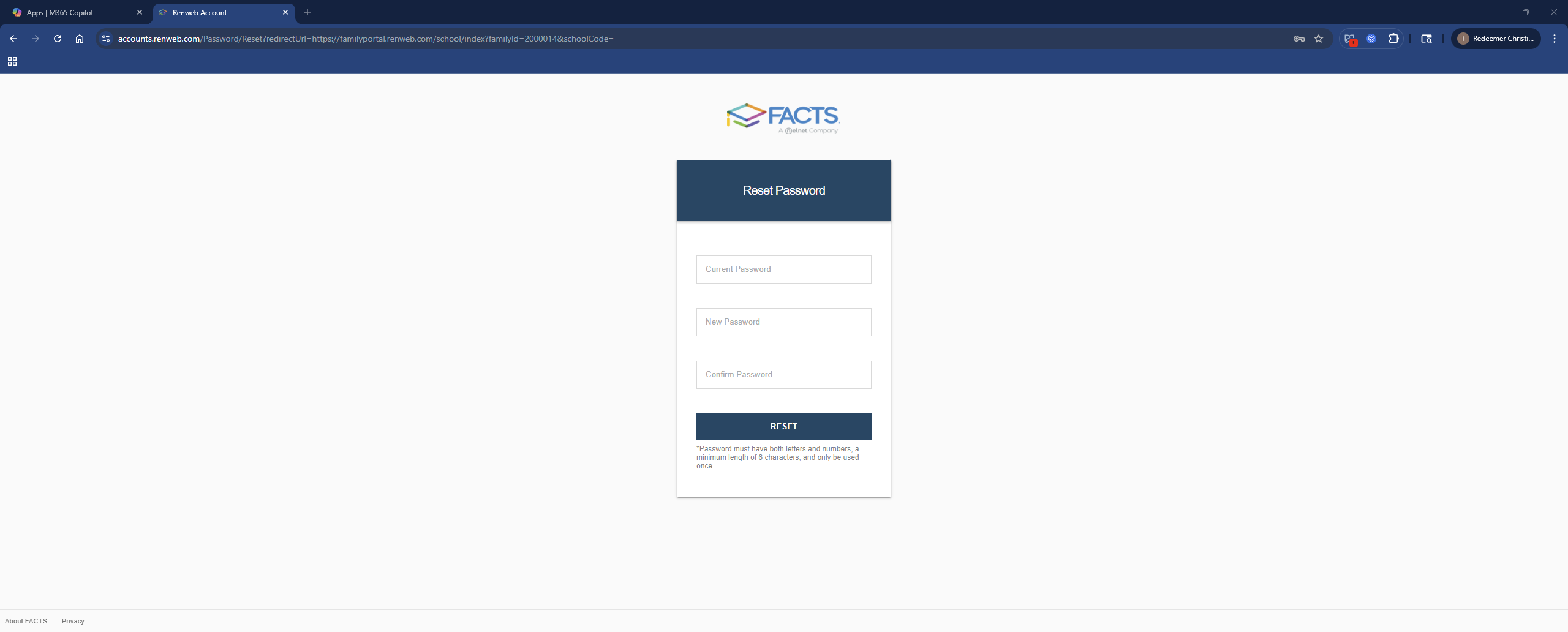
- Once you've successfully signed in to FACTS, please change your password.
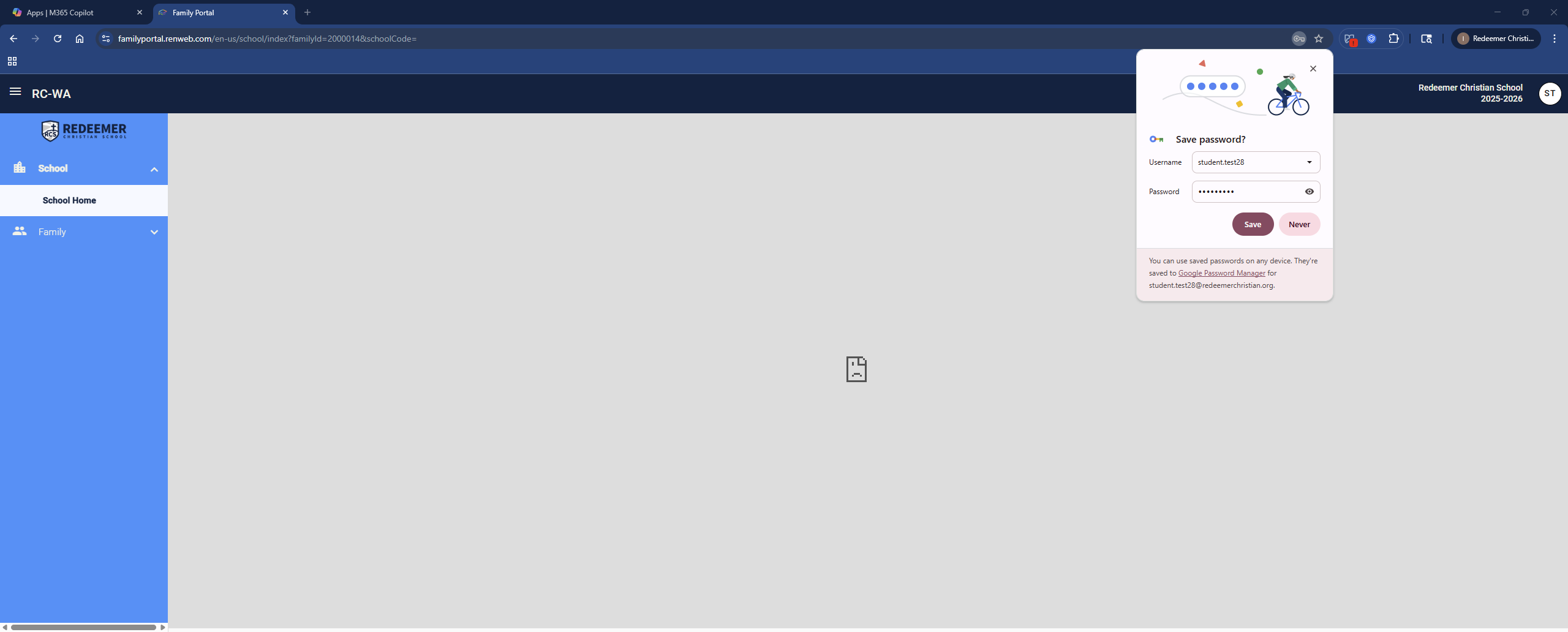
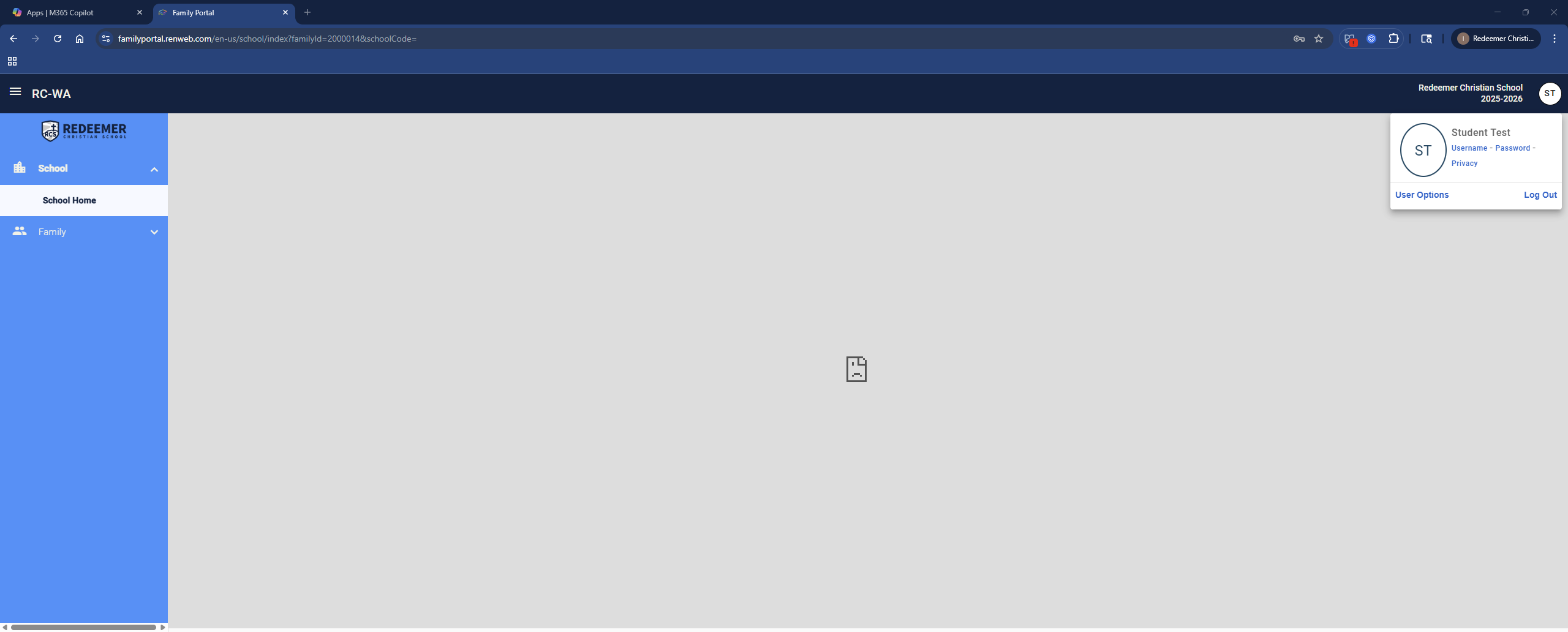
To change your password, please click on the upper-right corner of the page, and click on the picture. Then select Password and you'll be walked through changing your FACTS password. Please ensure you save your new password as FACTS only allows passwords to be used one time.
👨💻TIP!
- If you are having trouble signing in to FACTS, please ensure you typed in https://familyportal.renweb.com/. There are several services which FACTS can handle and it's possible it auto-filled to a different area of the website.
- Ensure you typed in the District Code correctly, RC-WA, not RCS-WA.
After you've completed all steps, you are ready to go!