Microsoft Authenticator Setup
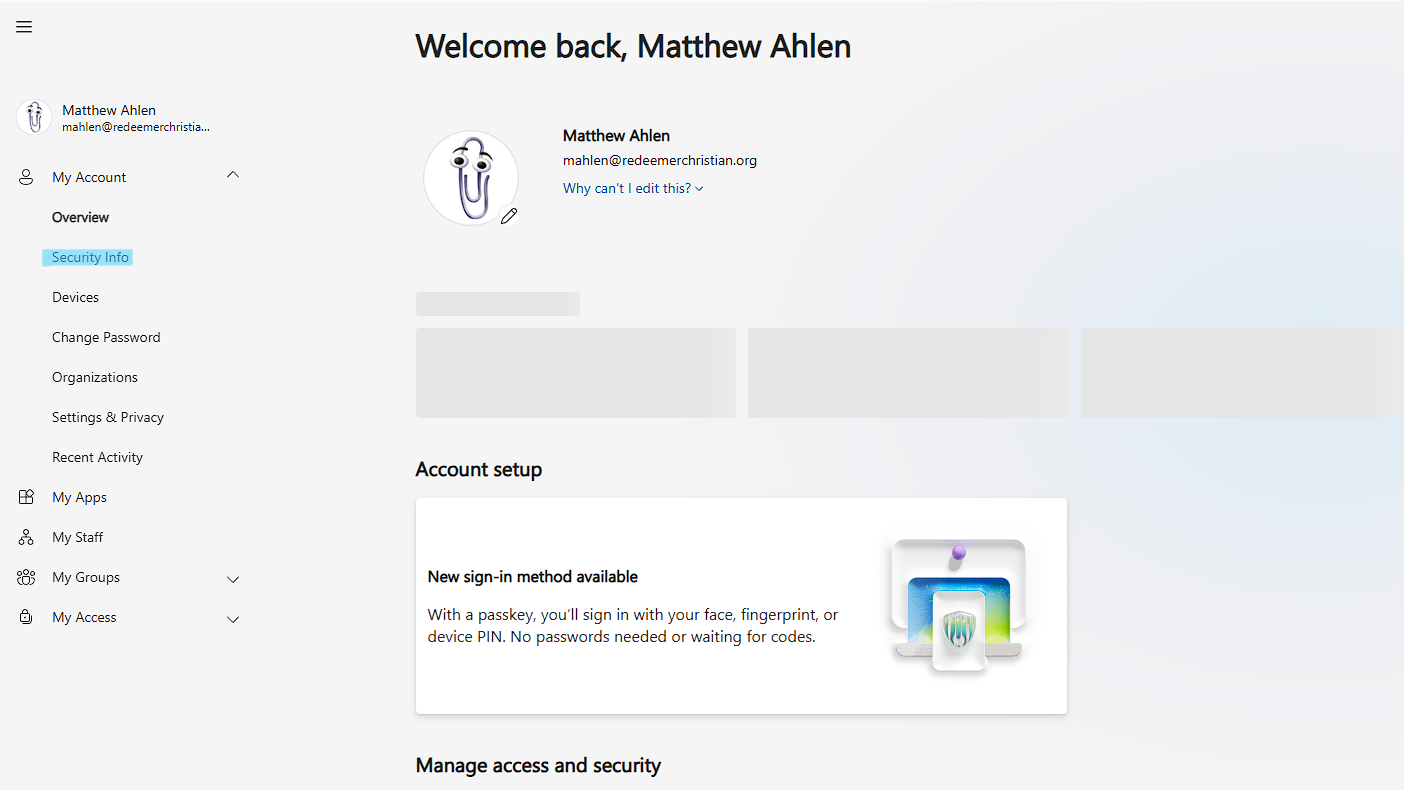
- On a PC, navigate to myaccount.microsoft.com and sign in to your RCS account.

- Once logged in, select the Security Info tab on the left-hand pane.
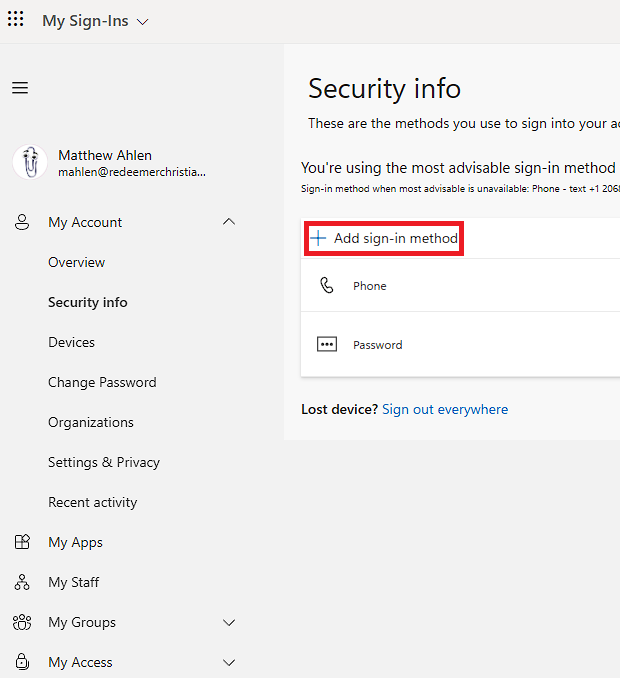
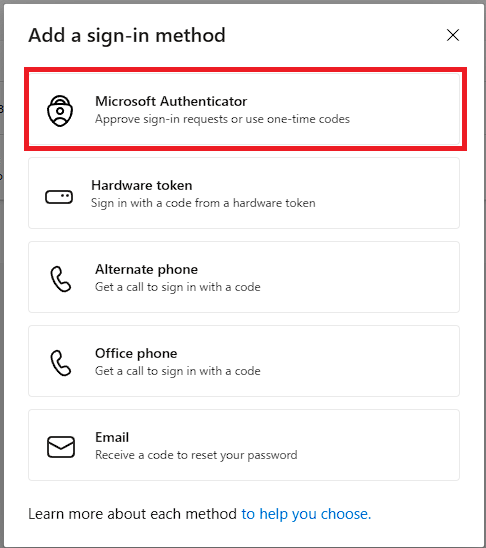
- Select Add sign-in method.
- Select the option for Microsoft Authenticator.
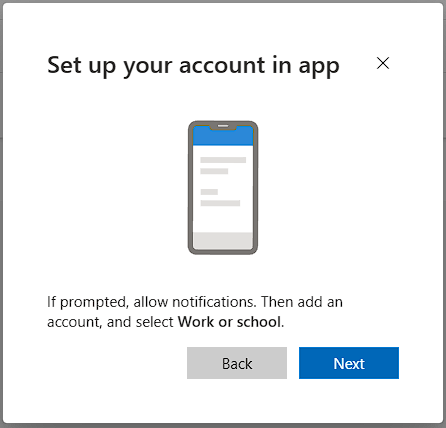
- Select Next twice on the next two windows.
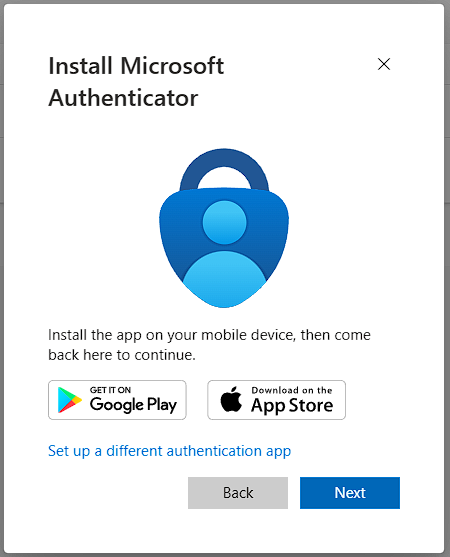
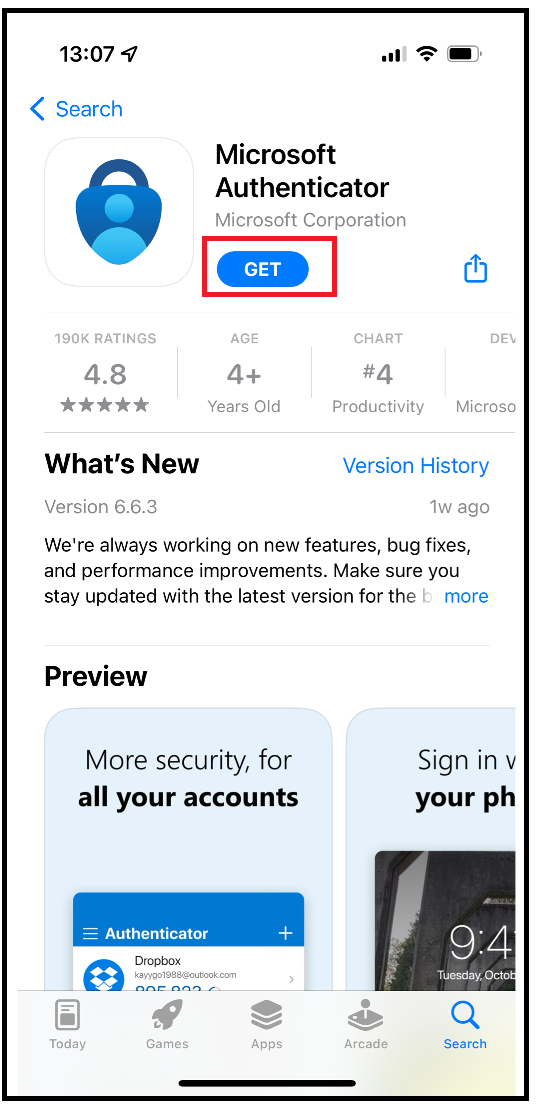
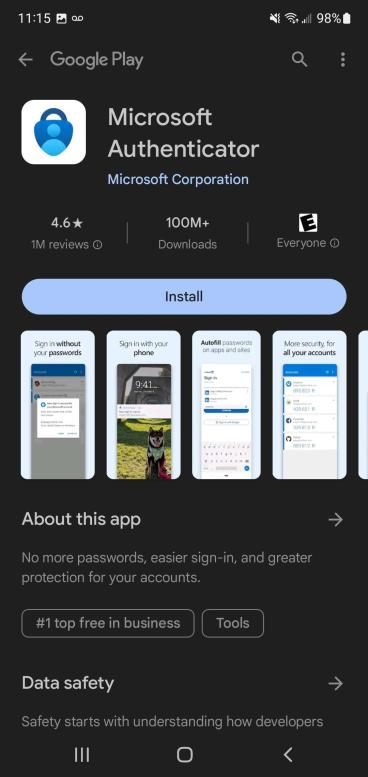
- Install the Microsoft Authenticator app on your smartphone.
Direct Links -
Apple: https://apps.apple.com/us/app/microsoft-authenticator/id983156458
Android: https://play.google.com/store/apps/details?id=com.azure.authenticator&hl=en_US
Quick Tip: If you scan the QR code that appears on your computer screen, it will automatically direct you to the Authenticator app in your store.
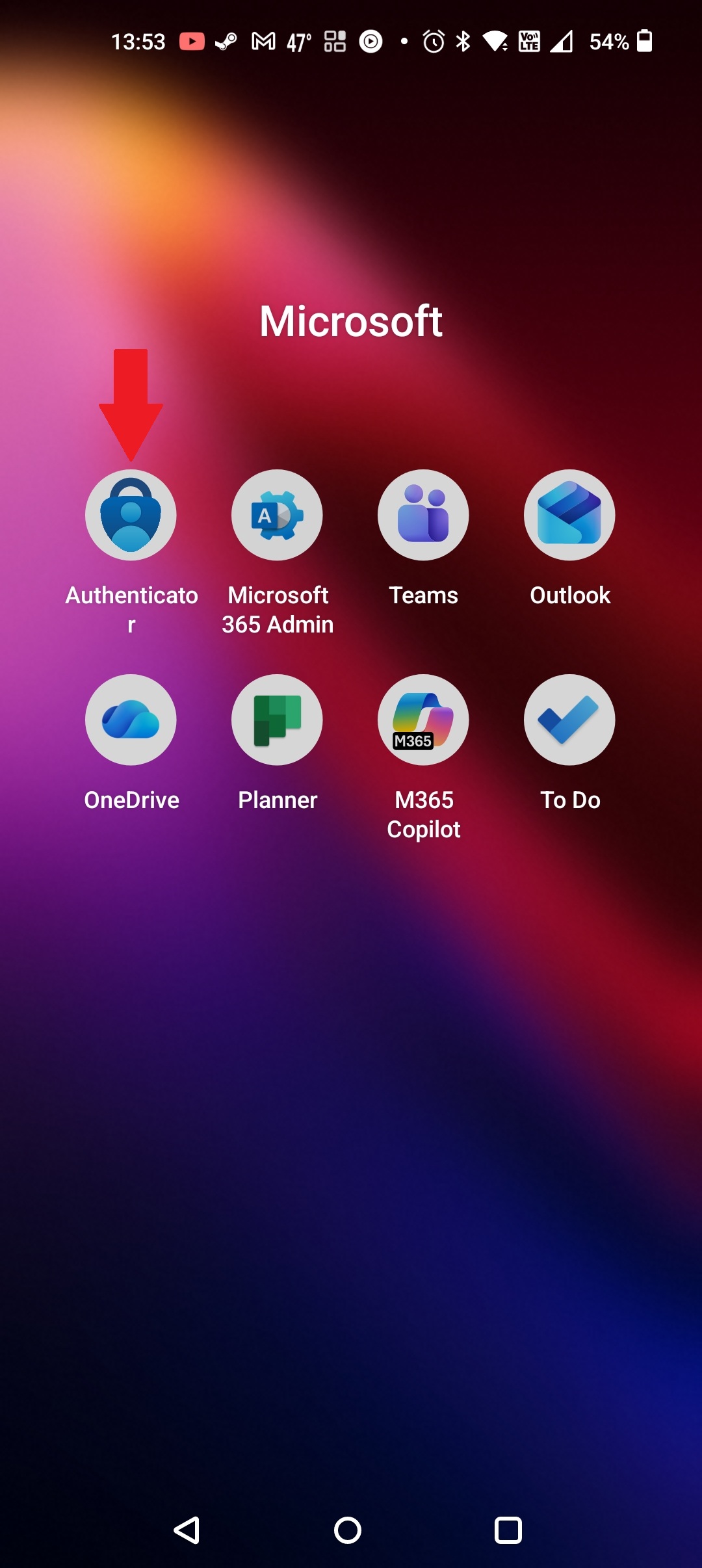
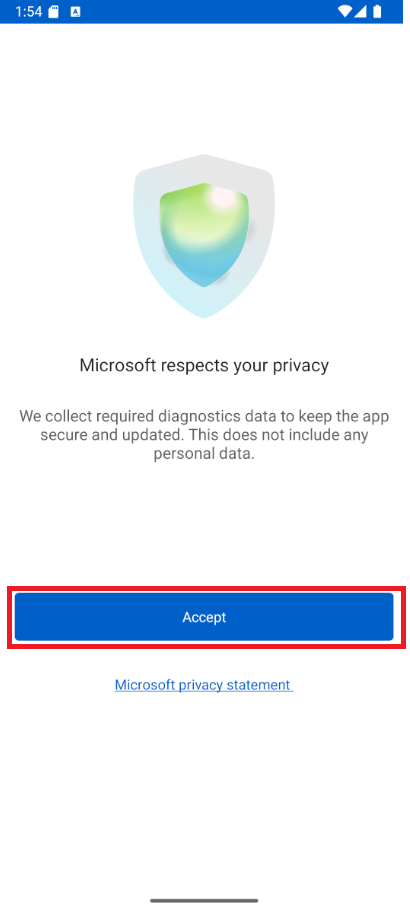
- When you open the app, select Accept.
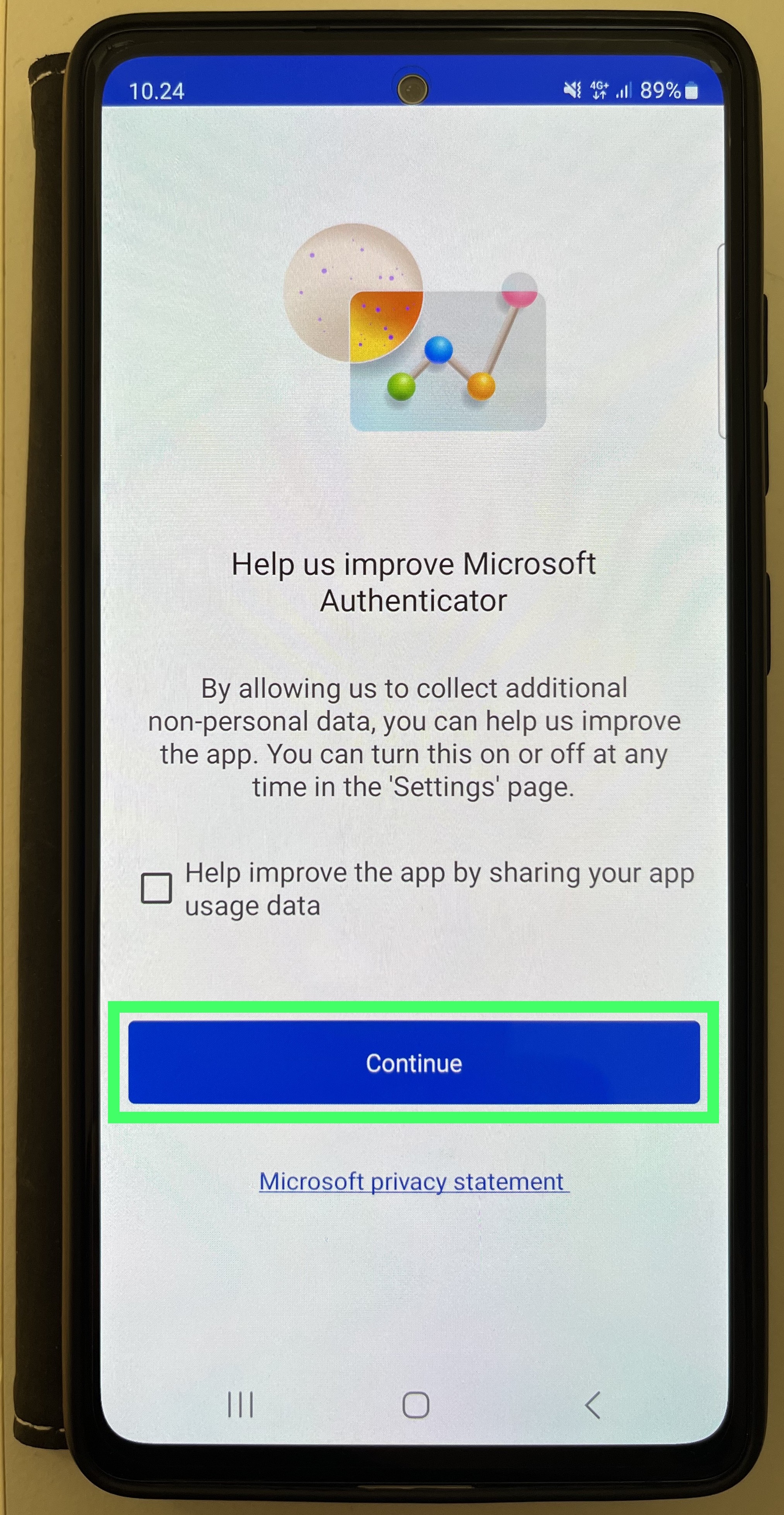
- Select continue.
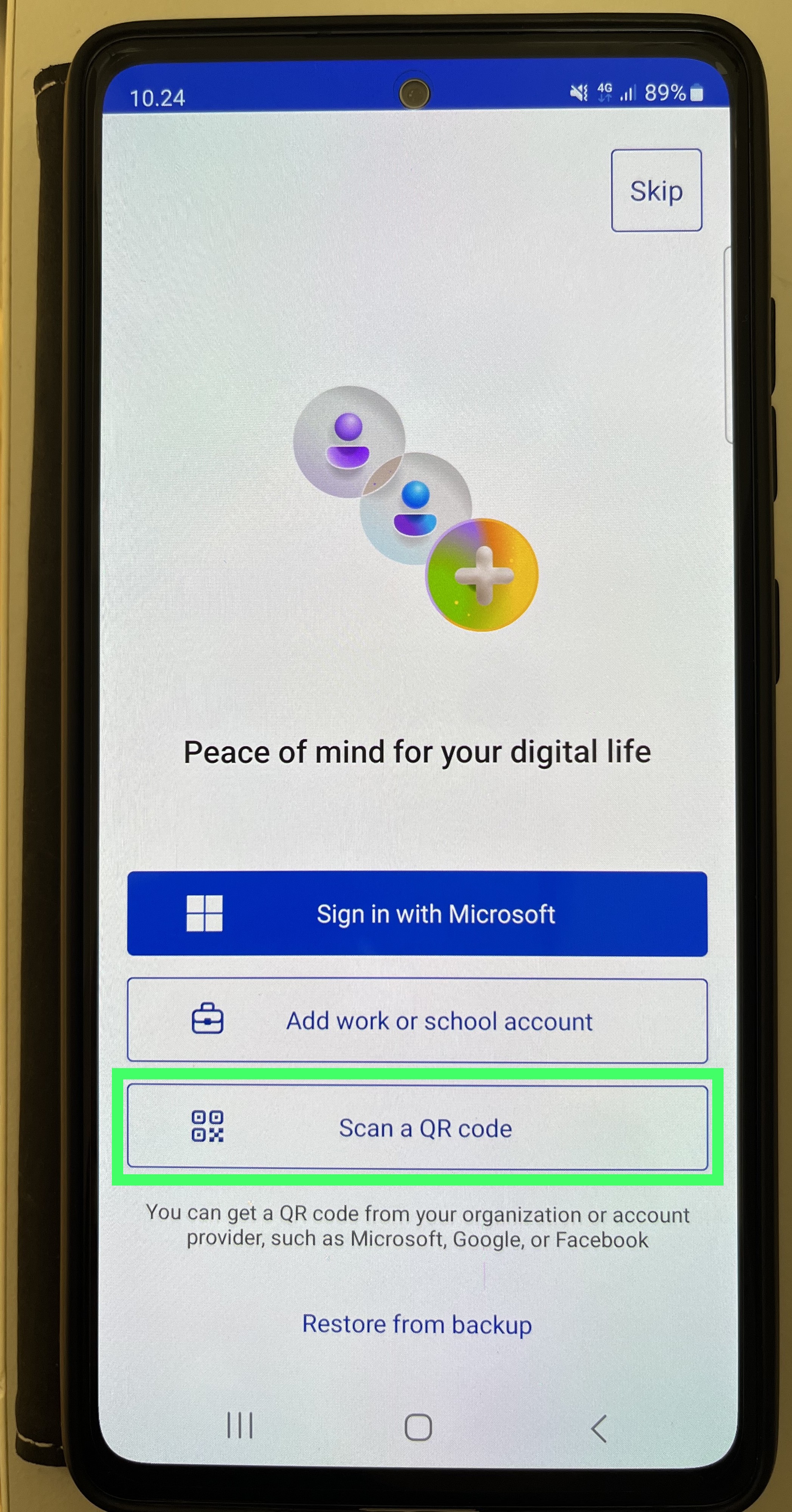
- Select Scan a QR code and scan the QR code that is showing in your PC's browser.

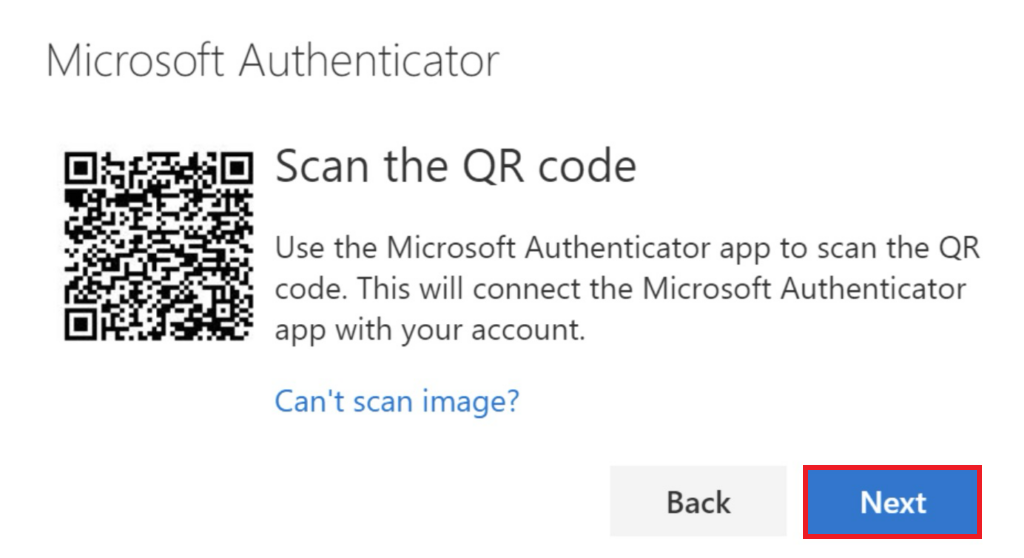
- Once you have scanned the QR code, select Next to proceed with verification.
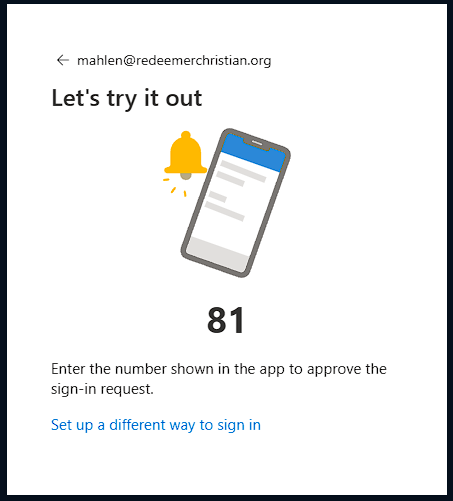
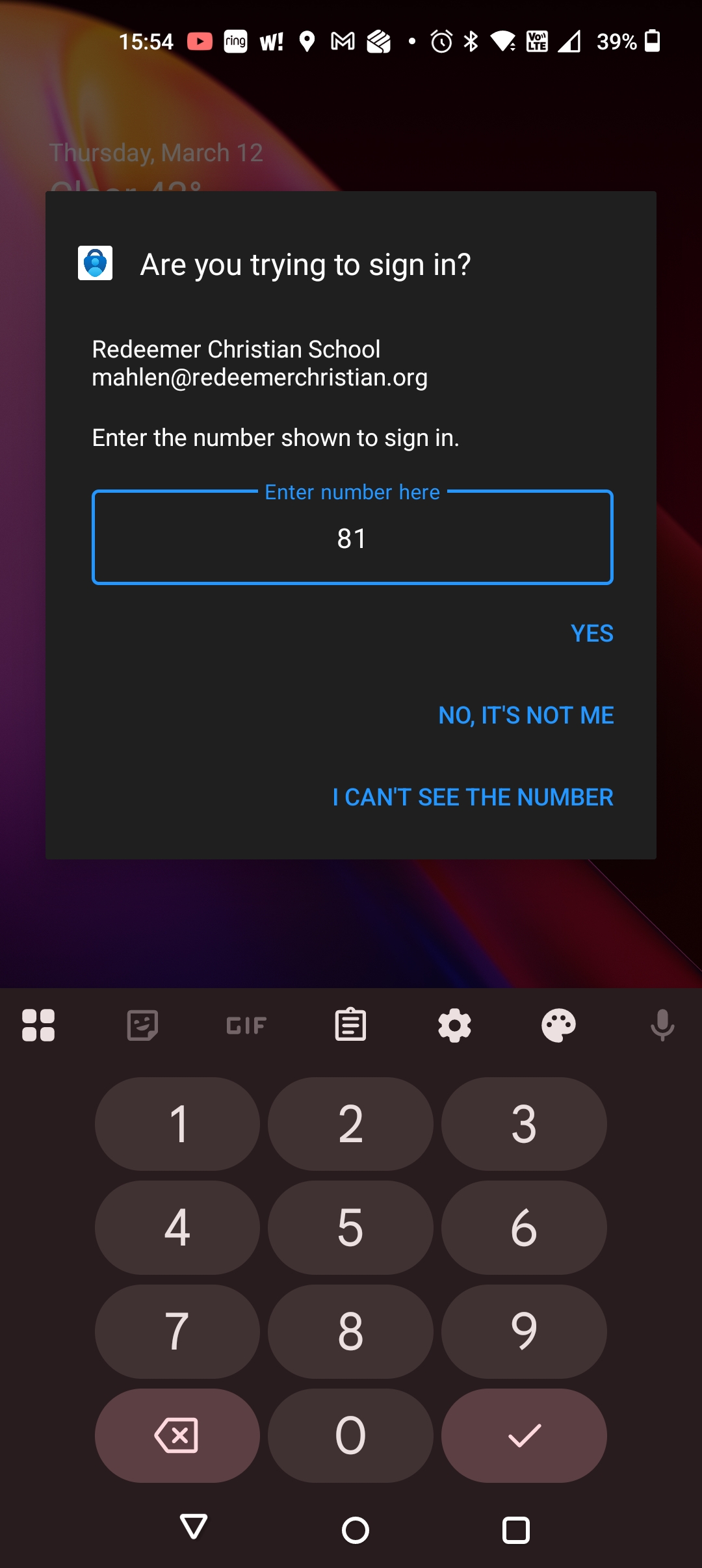
- Your PC will show a two-digit code, and the Authenticator app on your smartphone will ask for the code to confirm verification.
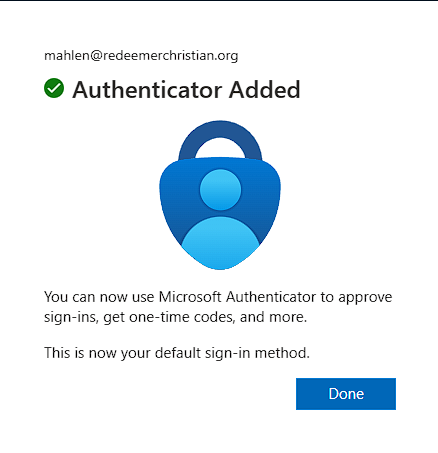
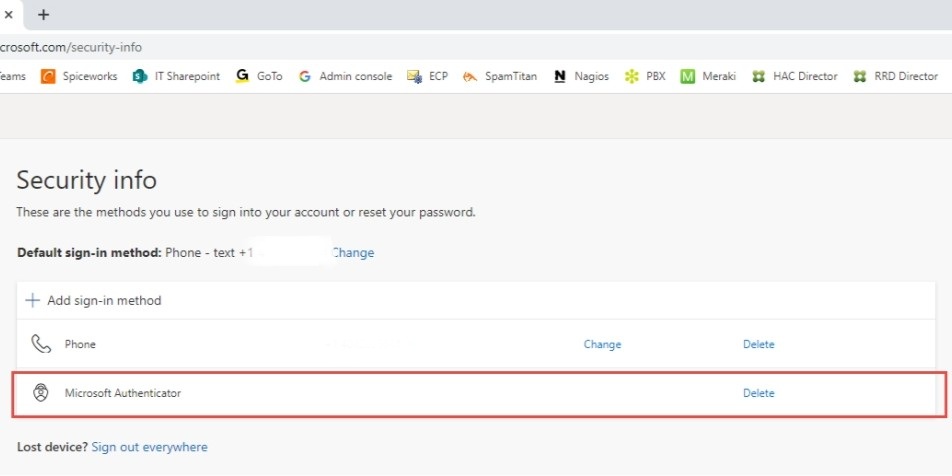
- Select Done and check that Microsoft Authenticator is listed as a sign-in method in your browser.